HappenBoard now works with your AI assistant. Connect Claude, ChatGPT or Cursor to your site, and ask in a chat for what you would otherwise click through in WordPress. It is free, and it is already in the plugin.
What you can ask
Your assistant uses the same actions as the HappenBoard screens. A few examples, each one handled by a tool of the plugin:
- “What’s on next week, and how many seats are left?”
- “Create a beginners’ yoga class every Monday from 7 to 8 pm, starting 5 January, 15 seats, in Studio B.”
- “Find a free 30-minute slot with Marie on Thursday.”
- “Register Camille Martin for Saturday’s workshop.”
- “Move Jean’s booking to 10:30.”
- “Will it rain during Friday’s open-air party?”
The assistant reads your answers back in plain words, so you can check before you ask for the next step.
How to connect it
HappenBoard runs its own MCP server, the standard way AI assistants connect to other tools. There is no key to copy:
- In WordPress, go to HappenBoard → Settings → AI agents and switch on Expose HappenBoard to AI agents.
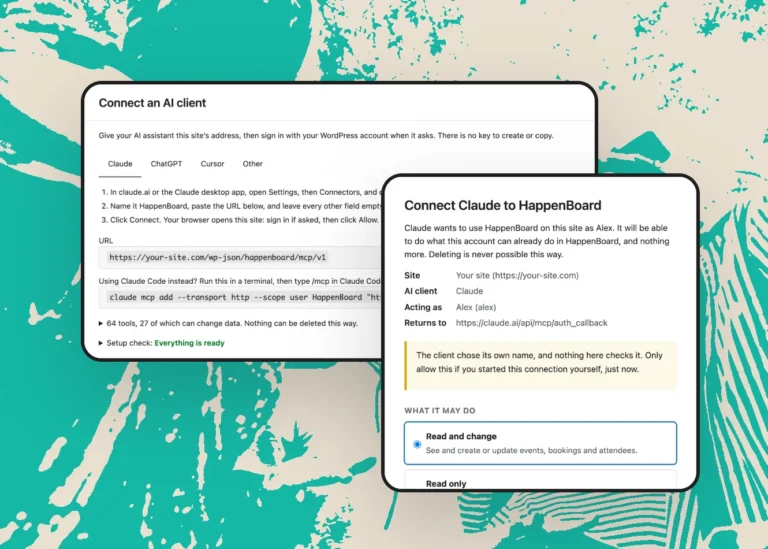
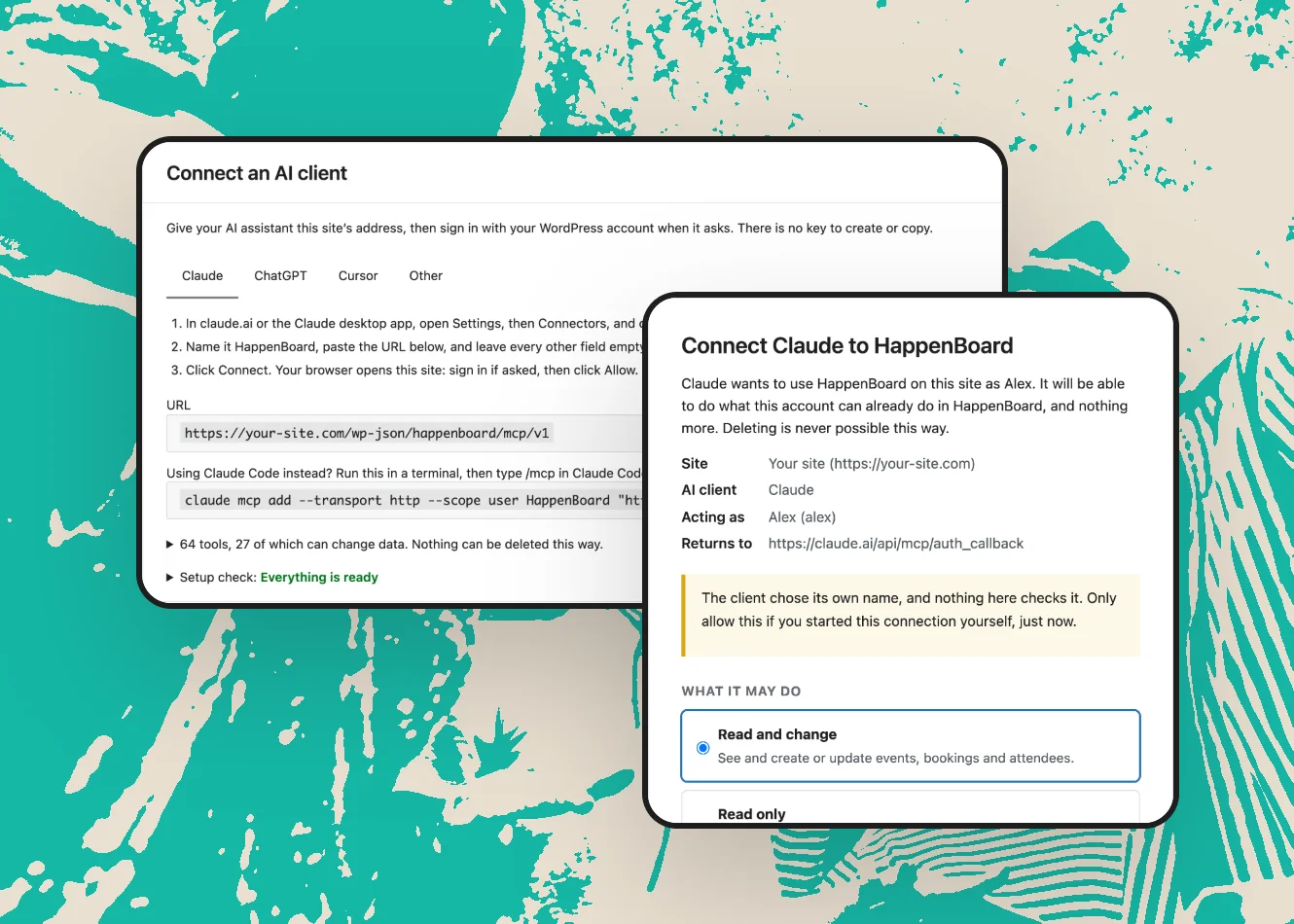
- Copy your site’s address from the Connect an AI client card and paste it into your assistant. The card has a tab with the steps for Claude, ChatGPT, Cursor and other assistants.
- Your site opens: sign in, choose Read only or Read and change, and click Allow.
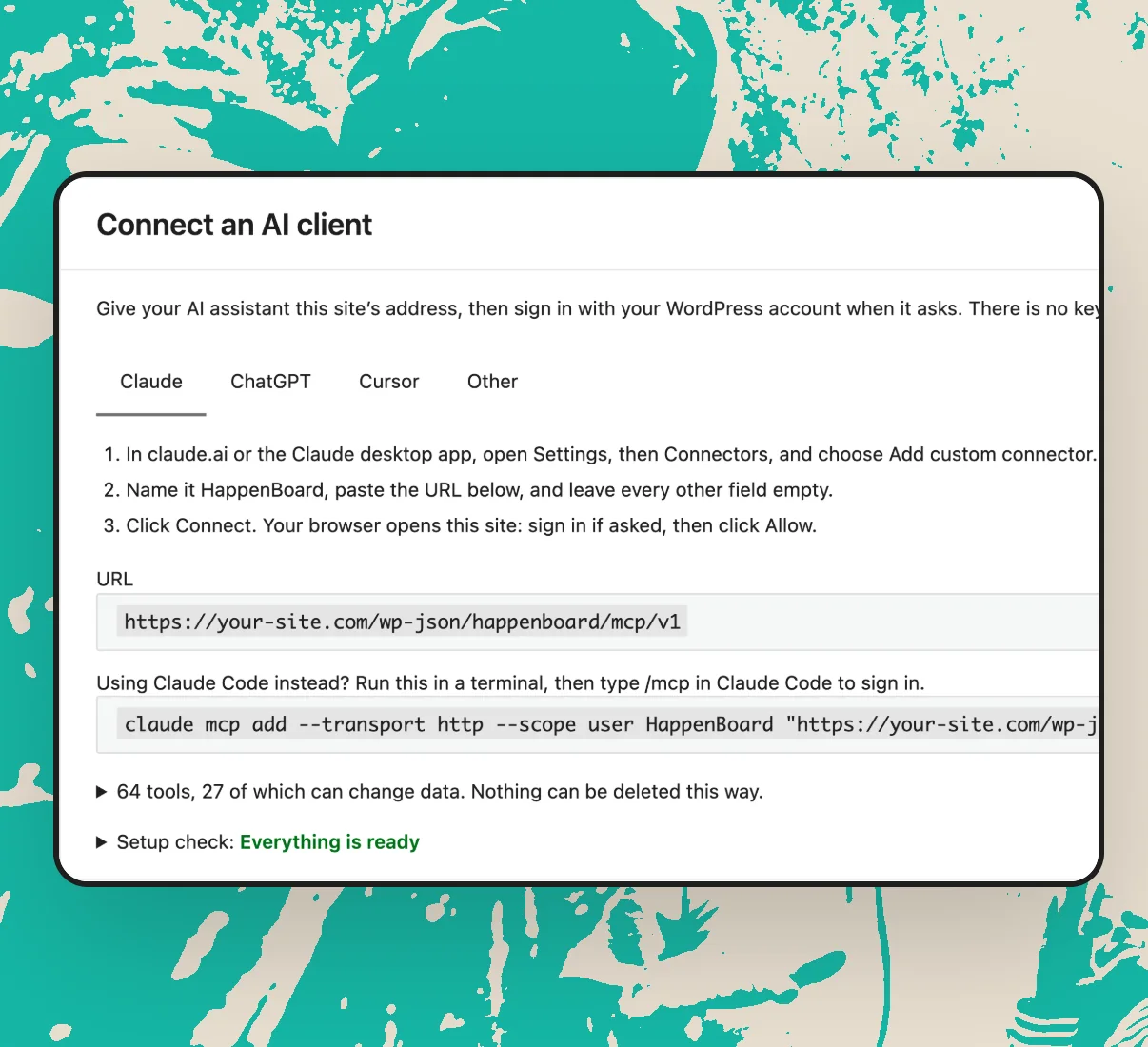
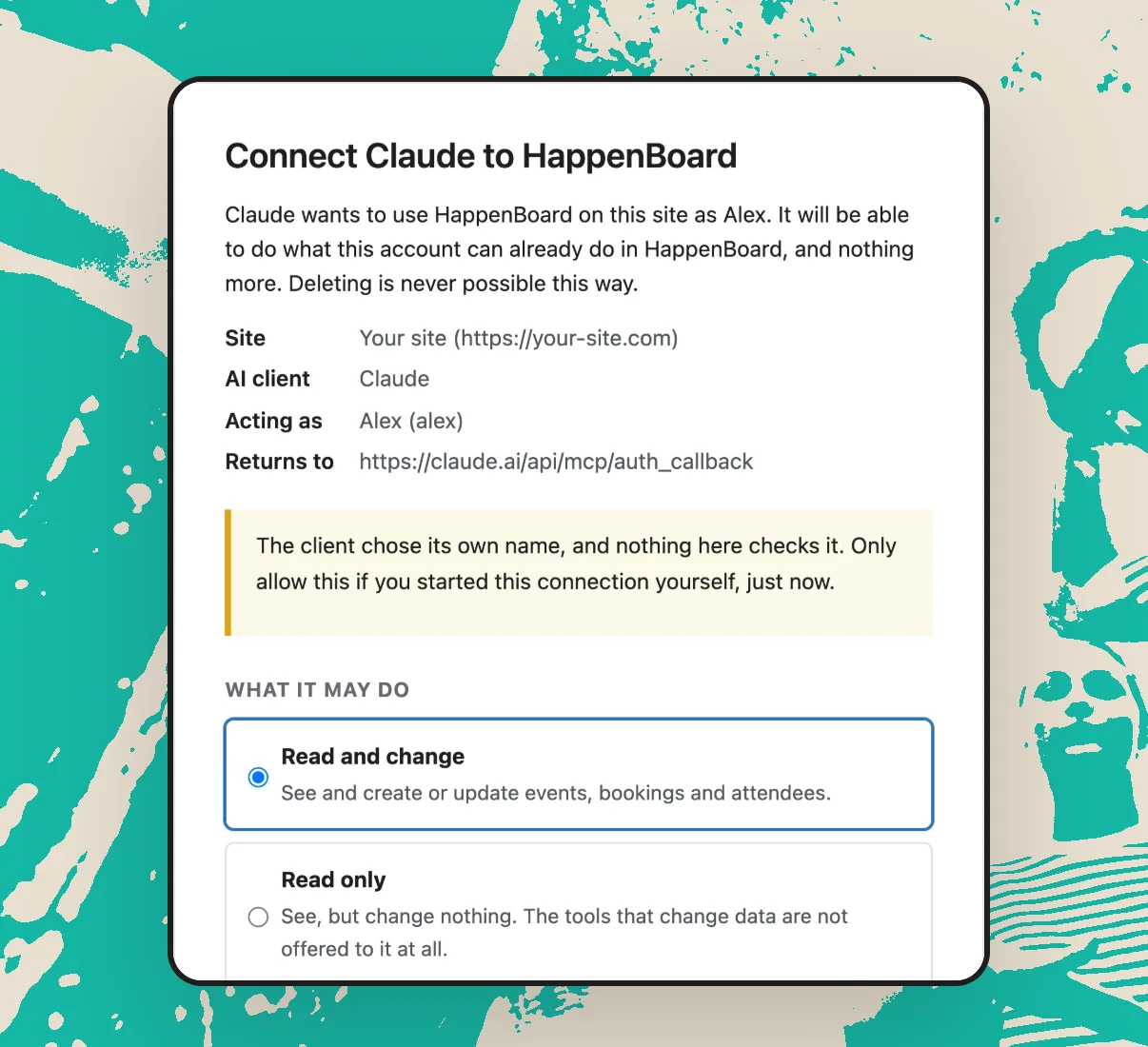
The setup guide covers each assistant, step by step.
What it will never do
An assistant can never delete anything. Deleting an event, a venue, an organizer or a booking type, cancelling a booking and importing a CSV file are left out: you do those in WordPress yourself.
It can change an attendee’s status, as the Attendees screen does. If the assistant should only look, choose Read only: the tools that change data are not even offered to it.
How your site stays safe
- Off by default. AI agents stay off until you switch them on.
- Your roles apply. The assistant acts as the WordPress account that connected it. An account that cannot export attendees sees their names, not their emails.
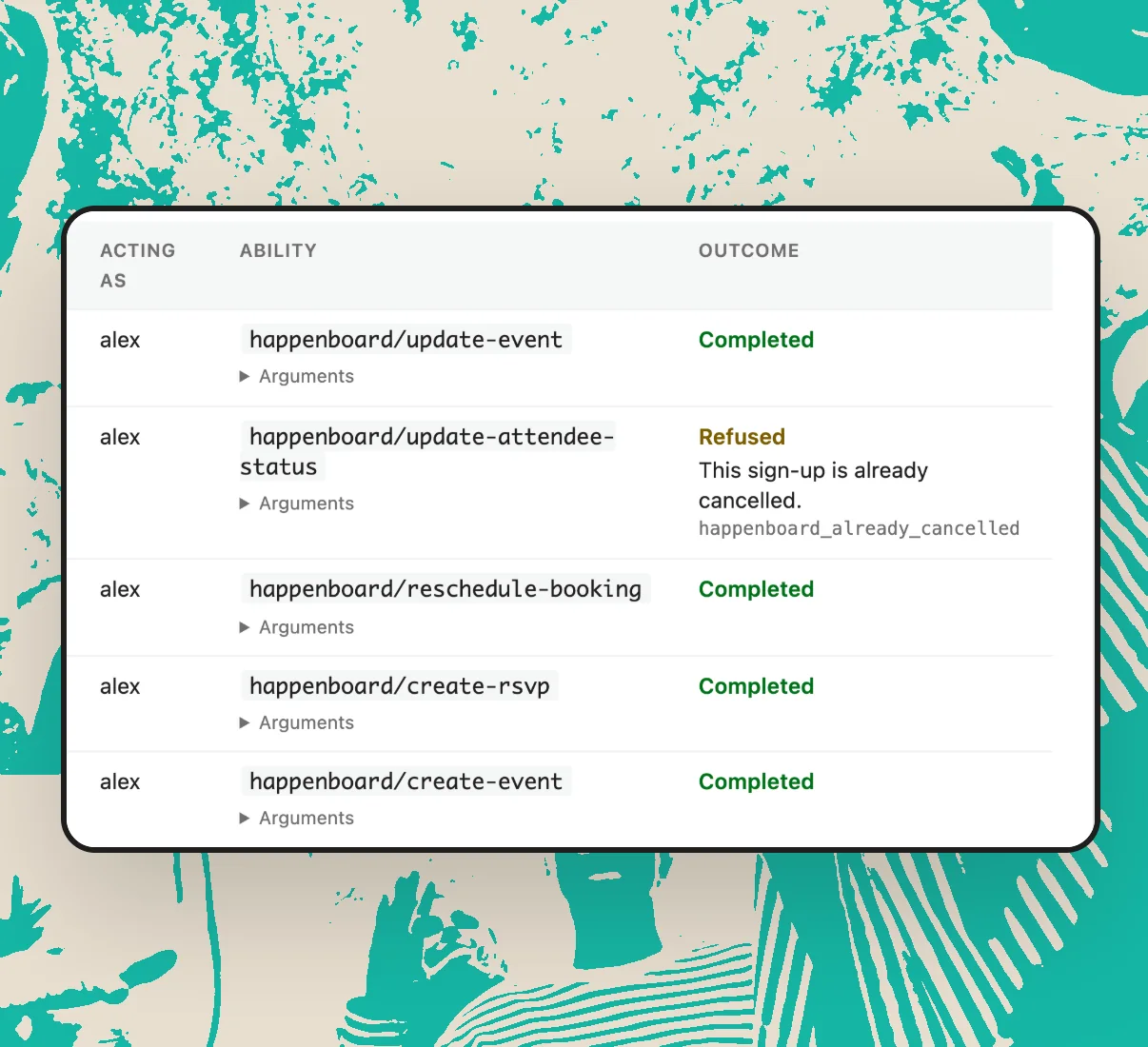
- Every change is logged. The Agent activity list shows each change an assistant made or tried, with the account and the outcome, for 90 days.
- Rate limits. Each account gets at most 300 reads a minute, 60 changes a minute and 600 changes an hour.
- One click to cut it off. Disconnect removes an assistant at once, and an unused one has to sign in again after 30 days.
What you need
- WordPress 6.9 or later, and any permalink structure other than Plain.
- For claude.ai, the Claude desktop app and ChatGPT, a site with a public HTTPS address. Claude Code and Cursor also reach a site that runs on your computer.
AI agents are in the free plugin. HappenBoard Pro adds tools for tickets, orders, check-in and custom fields, and an assistant that fills in the event form from one sentence. The AI agents page sums it all up.