Appointment booking on your site
Clients pick a free time on your booking page. HappenBoard checks your hours and sends the confirmation and reminders.



Appointment booking that fits your hours
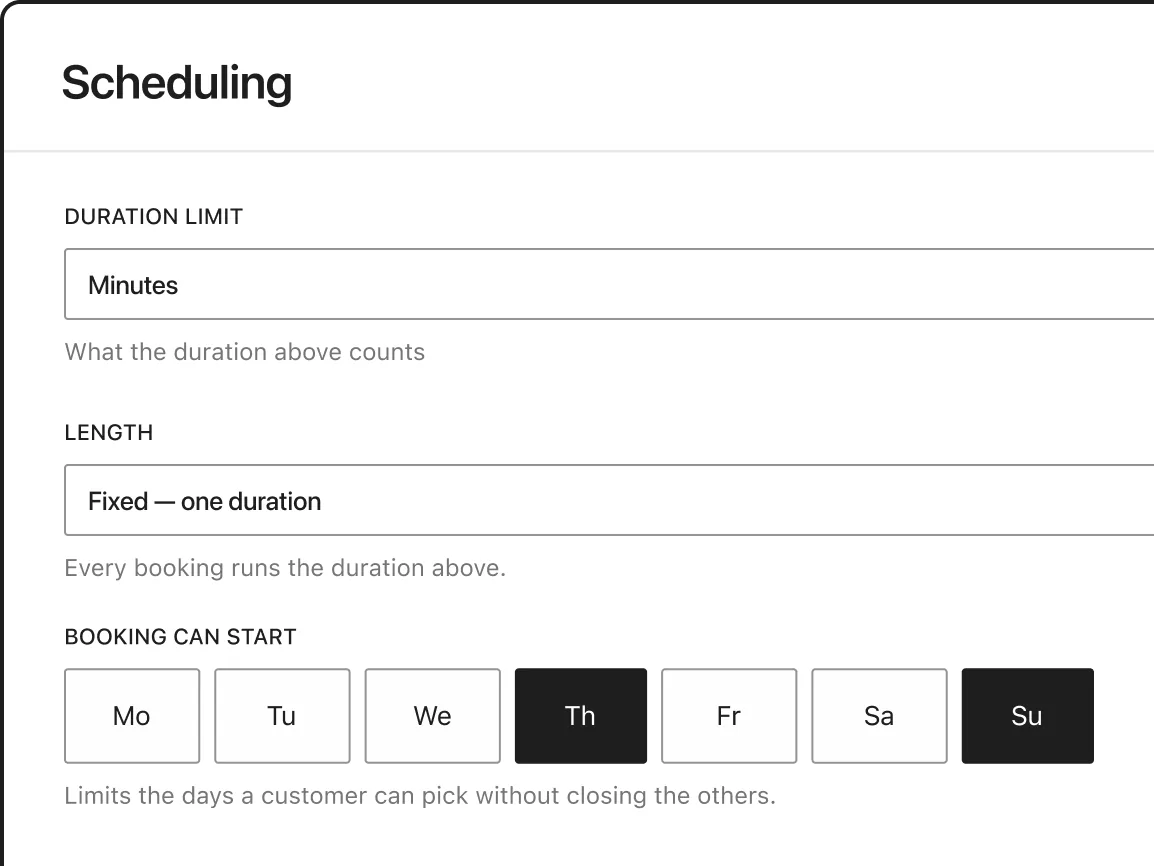
Describe each service once and set your weekly hours. Clients only see times that are really free, shown in their own time zone.
1. Set up
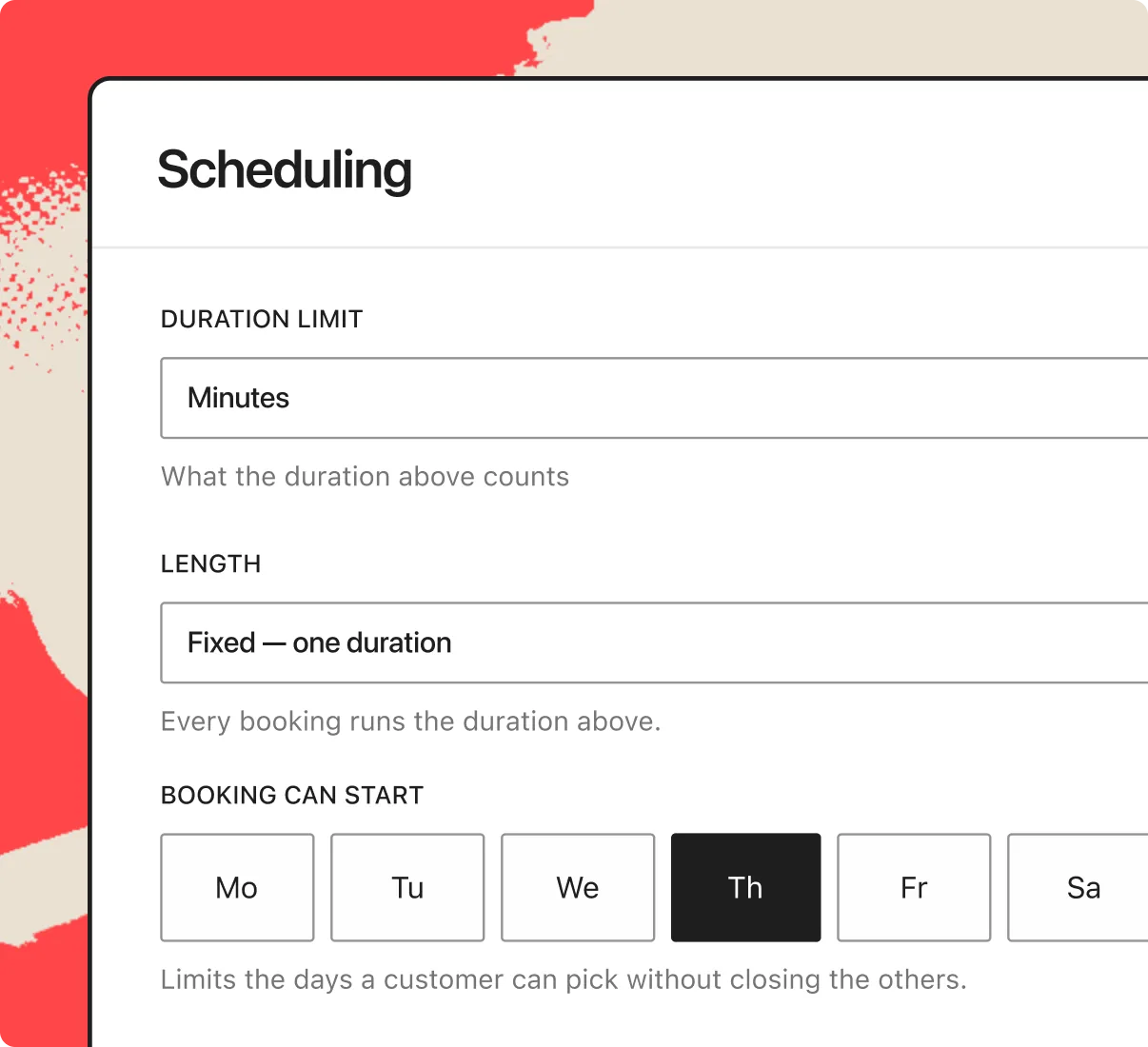
Create a service with its length, price and hosts.
2. Open
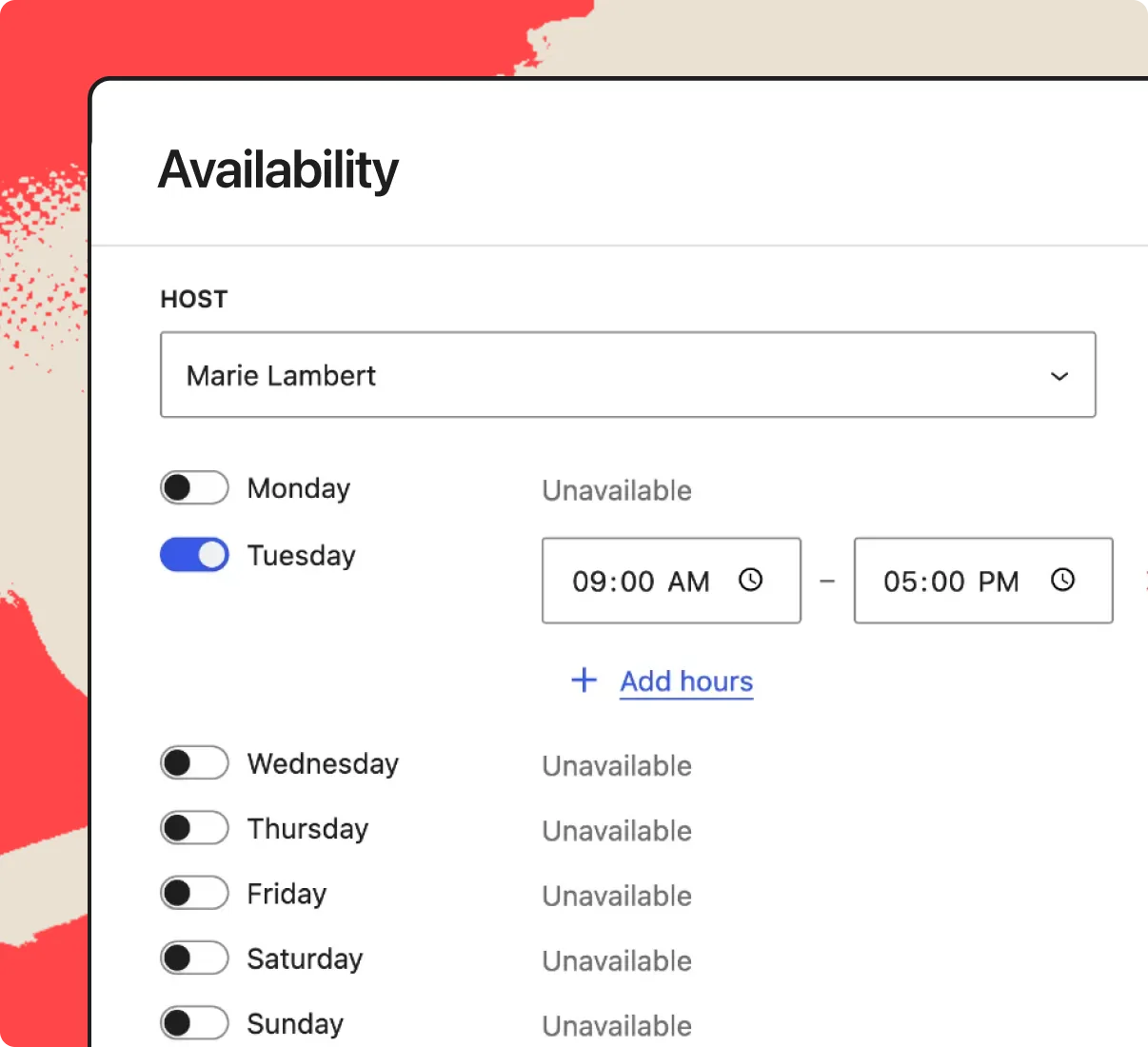
Set weekly hours, days off and holiday rules.
3. Manage
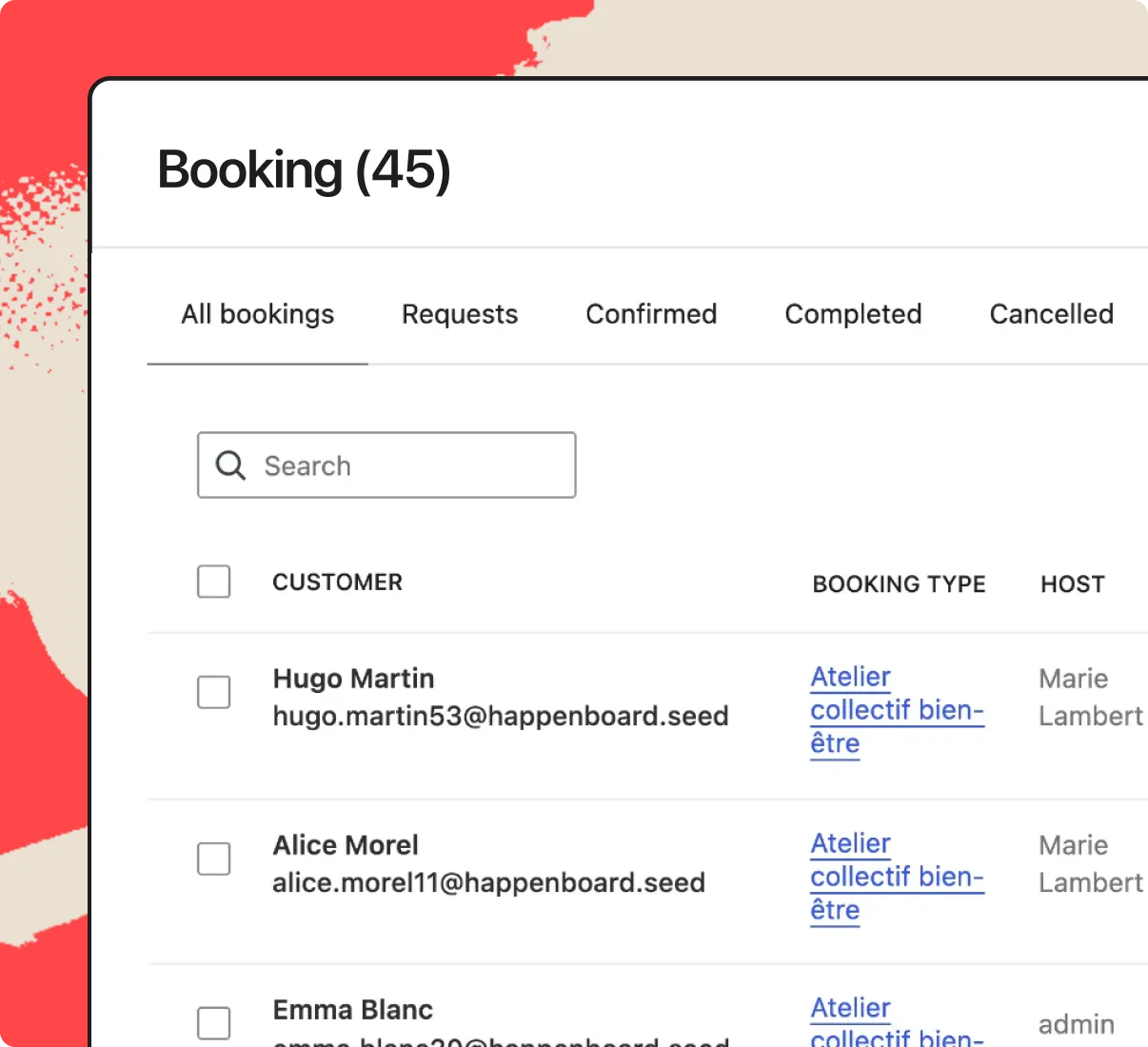
Approve, decline or cancel bookings from one screen.
All booking features

Services built your way
Fixed or client-chosen length in minutes, hours or whole days, seats per slot, buffers, minimum notice and a booking window. Start from six templates.

Hours, days off and holidays
Weekly hours with several ranges a day, days off, and rules by date, month or weekday. One site-wide rule closes every host on a public holiday.

Several hosts, no double bookings
Give each booking to the least busy host or let clients choose who they see. A host stays busy across all services, buffers included.

Emails and self-service
Confirmations carry a calendar file, reminders go out 24 hours and 1 hour before, and clients move or cancel their booking until your cutoff.

One screen for every booking
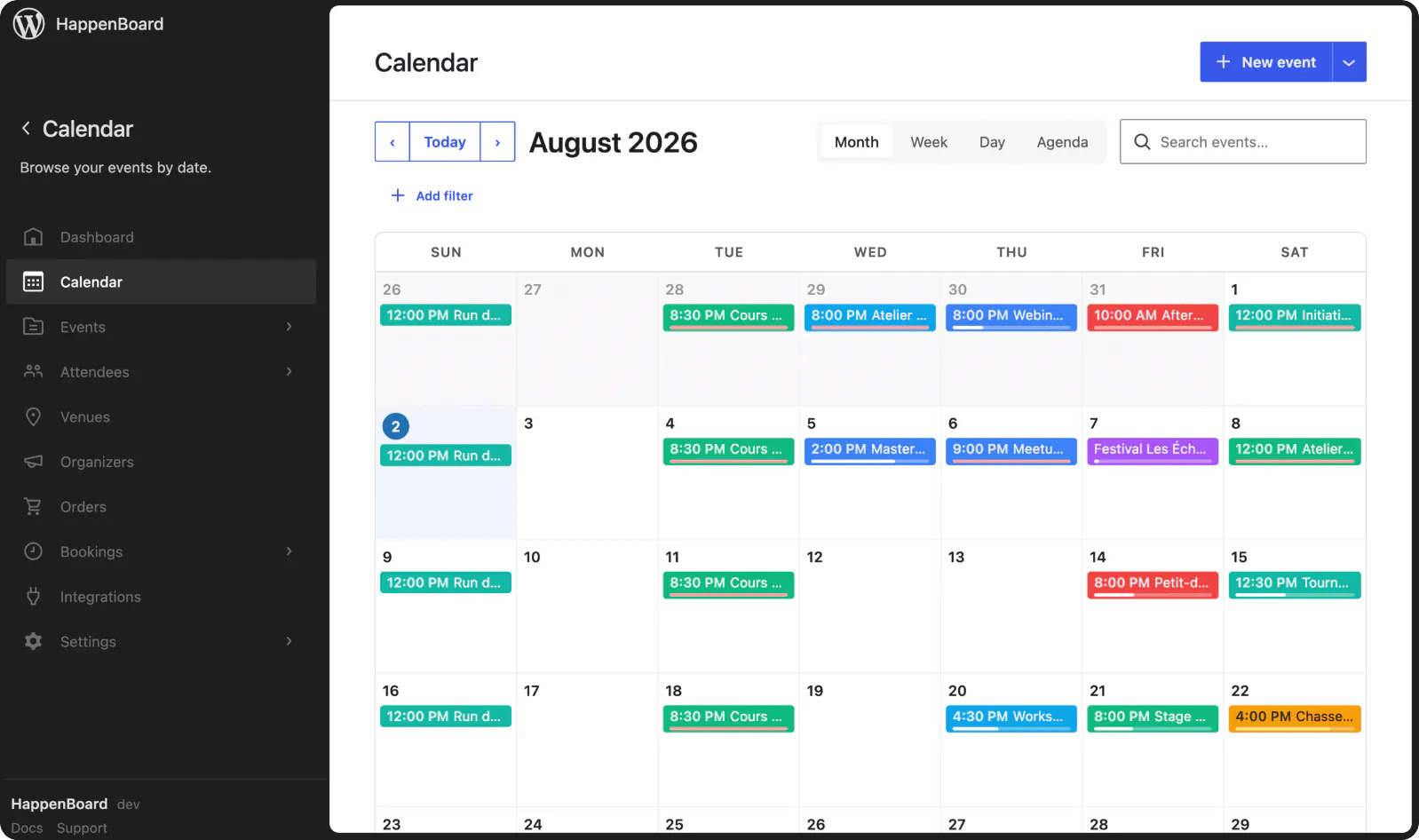
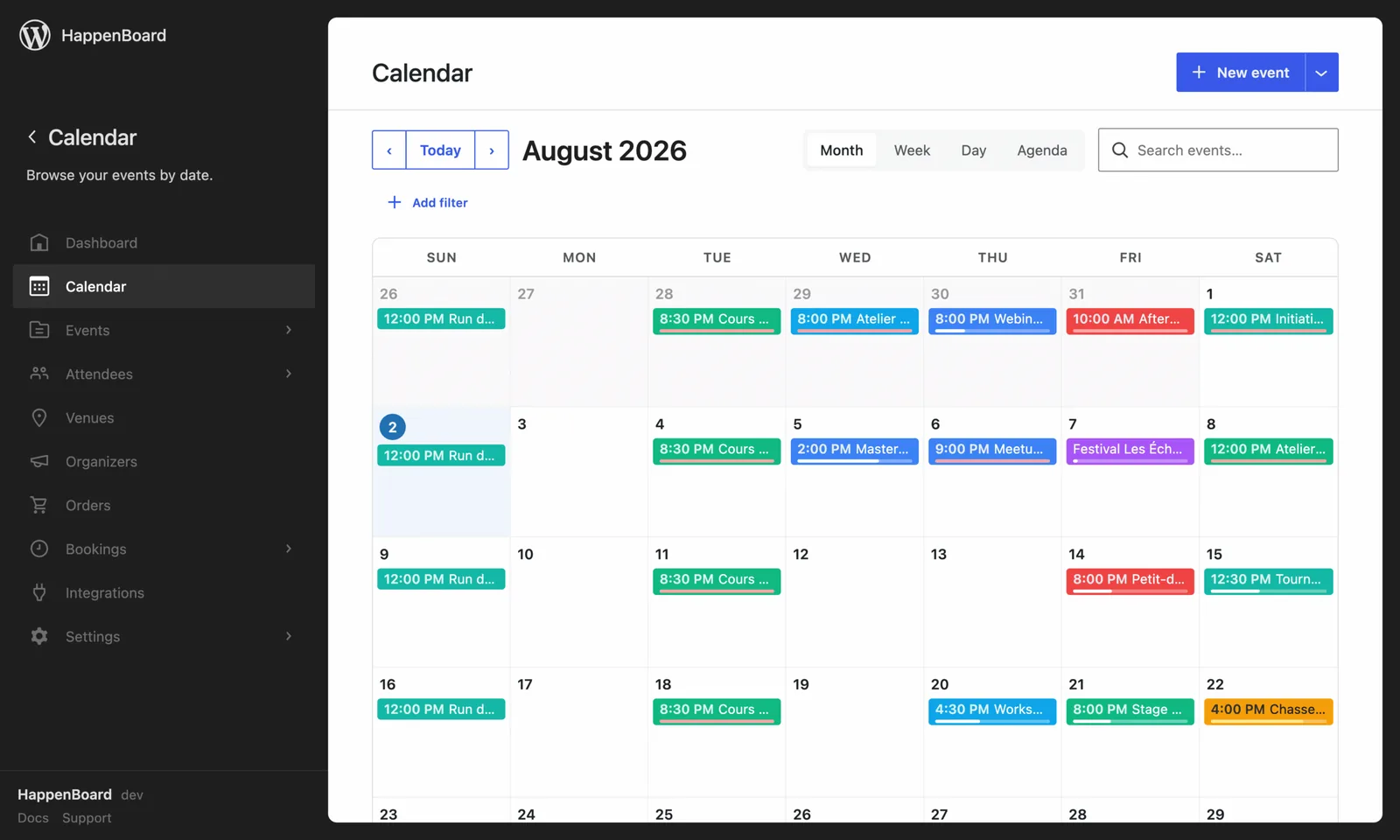
Approve requests, mark no-shows, add notes, book on behalf of a client and export to CSV. Bookings also appear on your admin calendar.

Online payment with Pro
Take the full price or a deposit through Stripe, hold the card until you approve, price adults and children apart, and share rooms between services.
Integrates with all your essential apps
















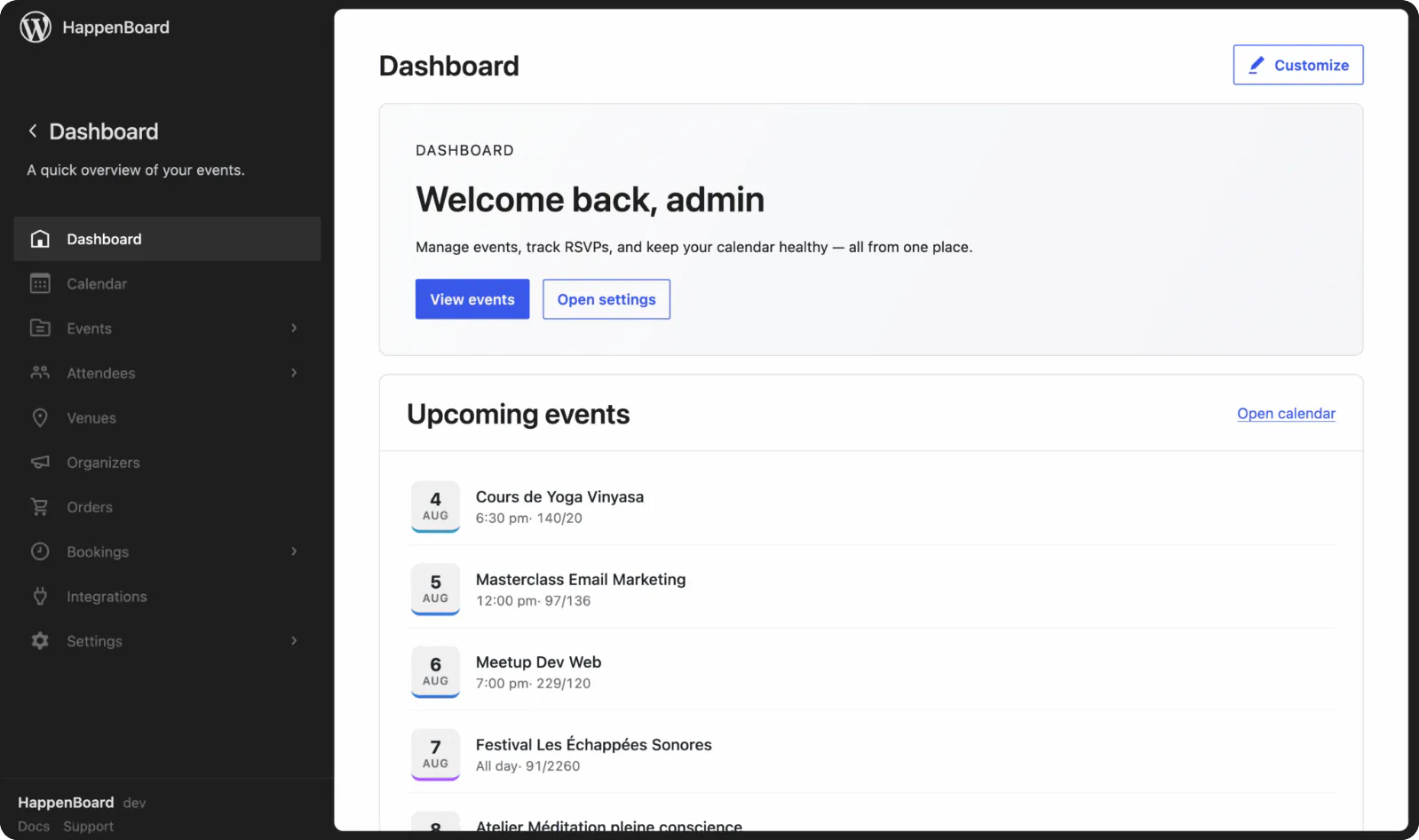
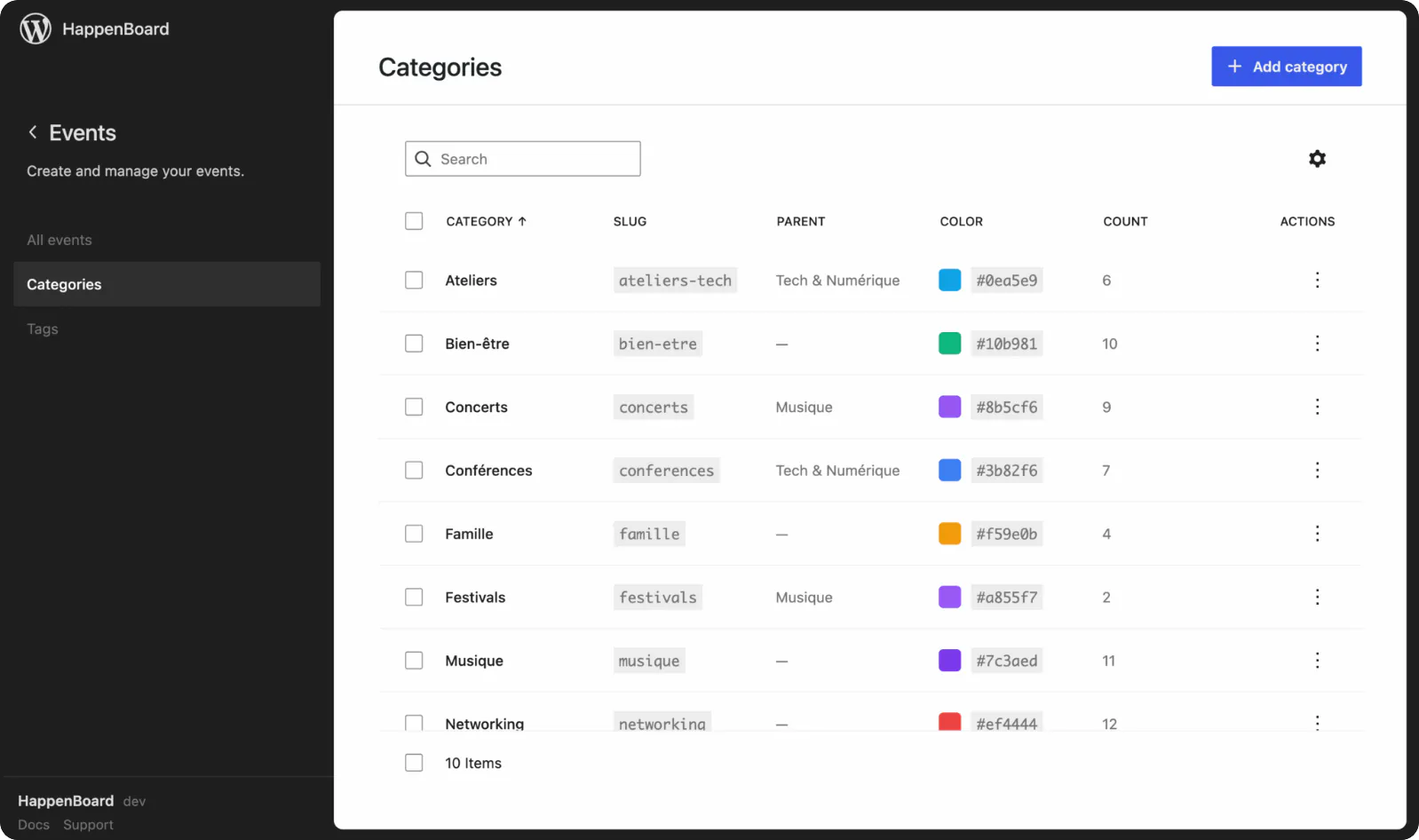
HappenBoard in action
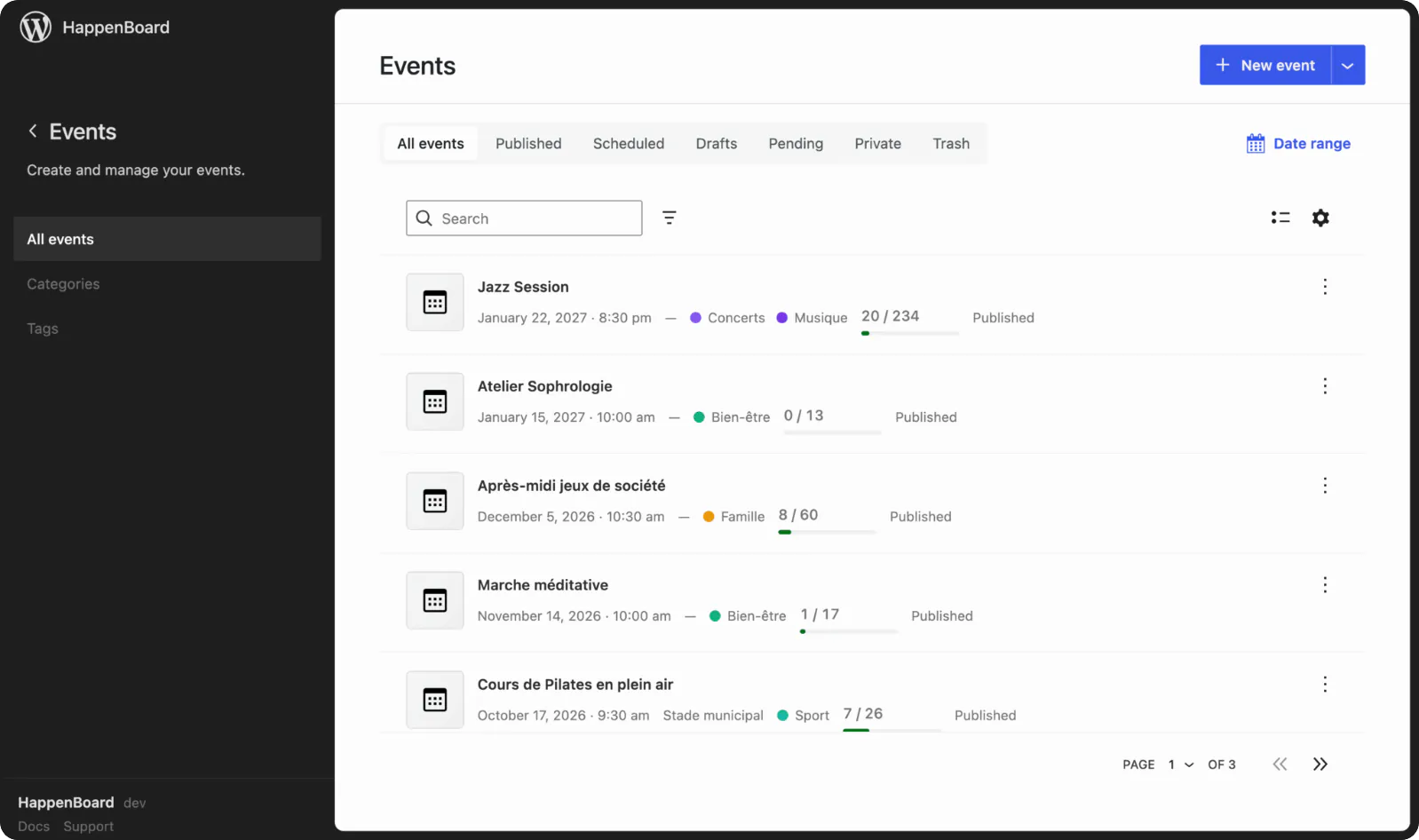
A quick tour of HappenBoard in your WordPress admin.



Why take bookings with HappenBoard?
1
Keep clients on your own website
The booking page is a block on your site, in your theme, with no third-party widget or iframe. Bookings and client details are stored in your WordPress database.
2
Stop the back-and-forth emails
Clients only see times that are really free, in their own time zone. They get a confirmation and two reminders, and can move or cancel without writing to you.
3
Take payments online with Pro
Services, availability, hosts, emails and the booking blocks are in the free plugin, with prices paid on site. Pro adds Stripe payment, deposits, person types and price rules.
Already on another events plugin?






Preview first, then import, even with the old plugin deactivated. Repeat rules from The Events Calendar, Events Manager 7 and Sugar Calendar come across, and you can export your events to CSV at any time.
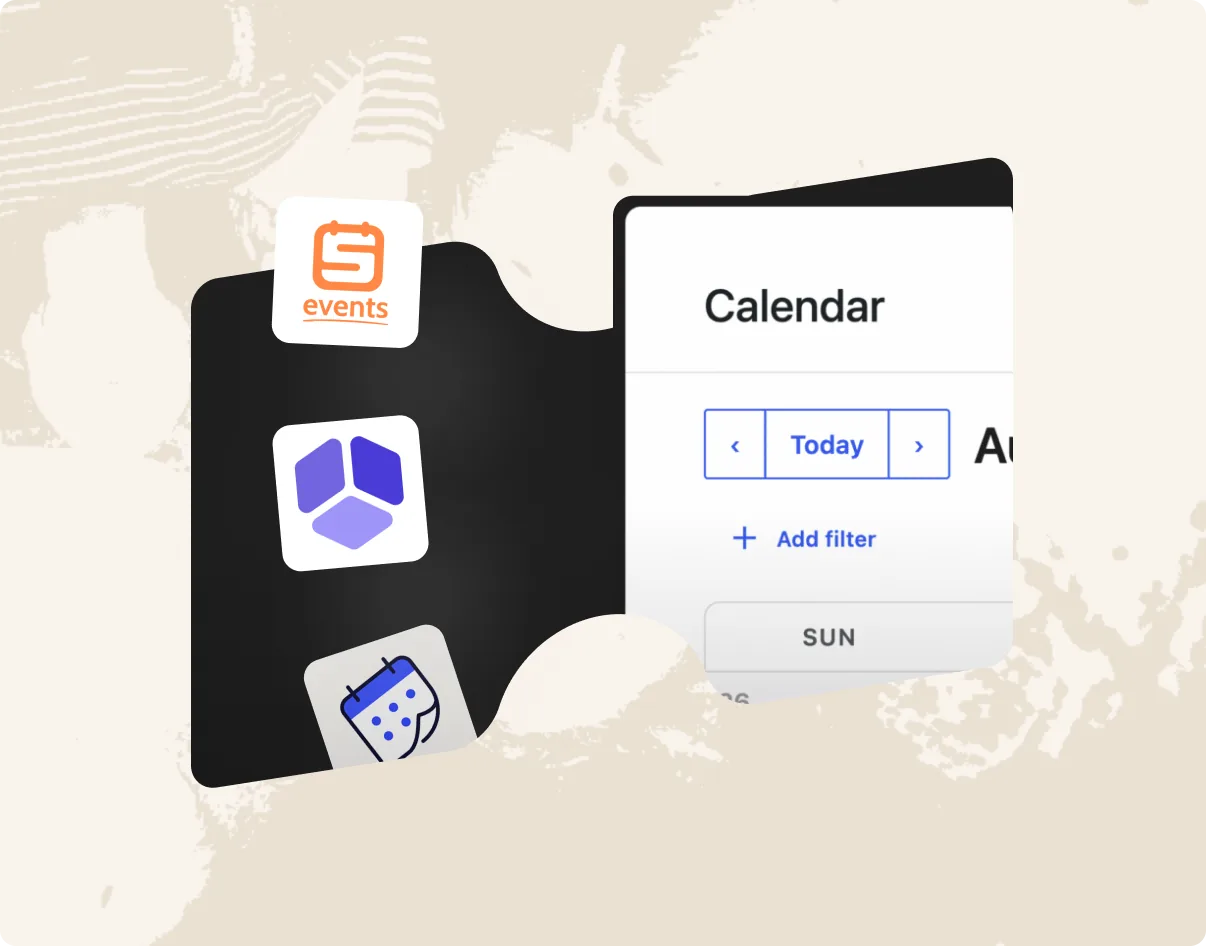
Tailor HappenBoard to your business needs with flexible integration options.
You ask.
We answer.
We’re featured in





Is appointment booking included in the free plugin?
Yes. Booking types, availability, hosts, the booking blocks, emails and reminders are all free. The free plugin shows the price and the client pays on site; online payment through Stripe needs HappenBoard Pro.
How are double bookings prevented?
A host counts as busy during every booking of any service, buffers included. Each new booking checks its slot again under a database lock before it is saved, so two clients cannot take the same last seat.
Can a client book for a group?
Each slot can hold several seats. On the booking page a client books one seat, unless you set person types (for example adult and child) with HappenBoard Pro. From the admin, you can create a booking with several seats.
Can I approve bookings before they are confirmed?
Yes. Turn on approval for a service: the button then reads Request booking, and requests wait in the Requests tab until you approve or decline them. With Pro and Stripe, the card is held and charged only when you approve.
Can clients reschedule or cancel on their own?
Yes. The confirmation and reminder emails link to a page where clients move their booking to another free time or cancel it, until the cutoff you set. Hosts and the site admin get an email for each change.
Does it work with Google Calendar or Outlook?
Each confirmation carries a calendar file for the client. With HappenBoard Pro, each host can connect a Google or Outlook calendar so their busy times disappear from the booking page. Bookings are not written into host calendars.