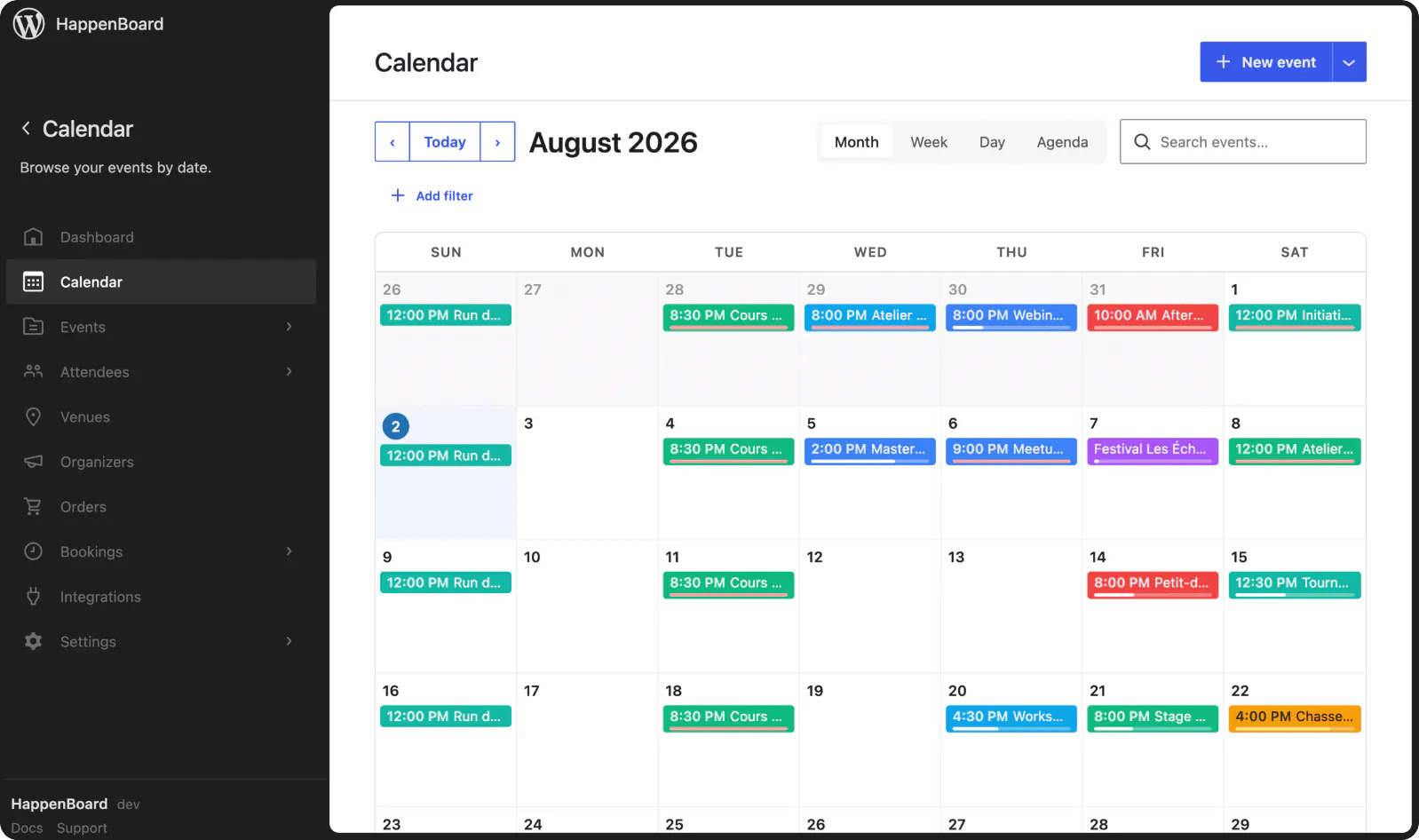
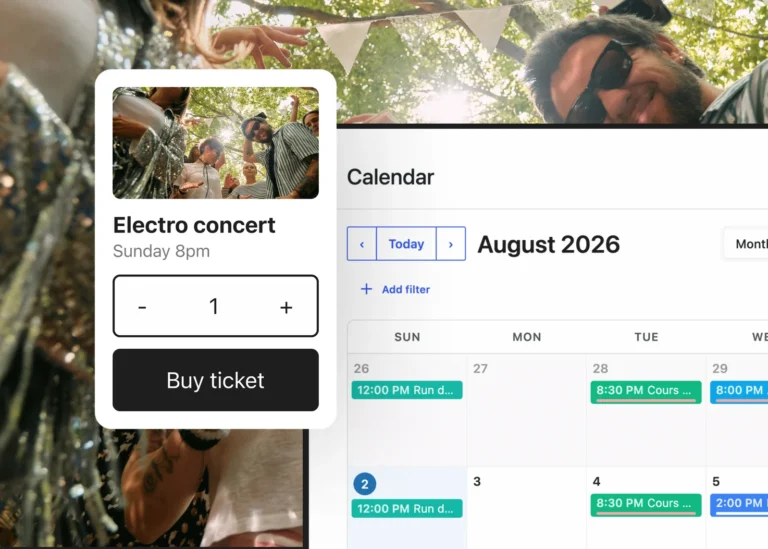
A WordPress event calendar in four views
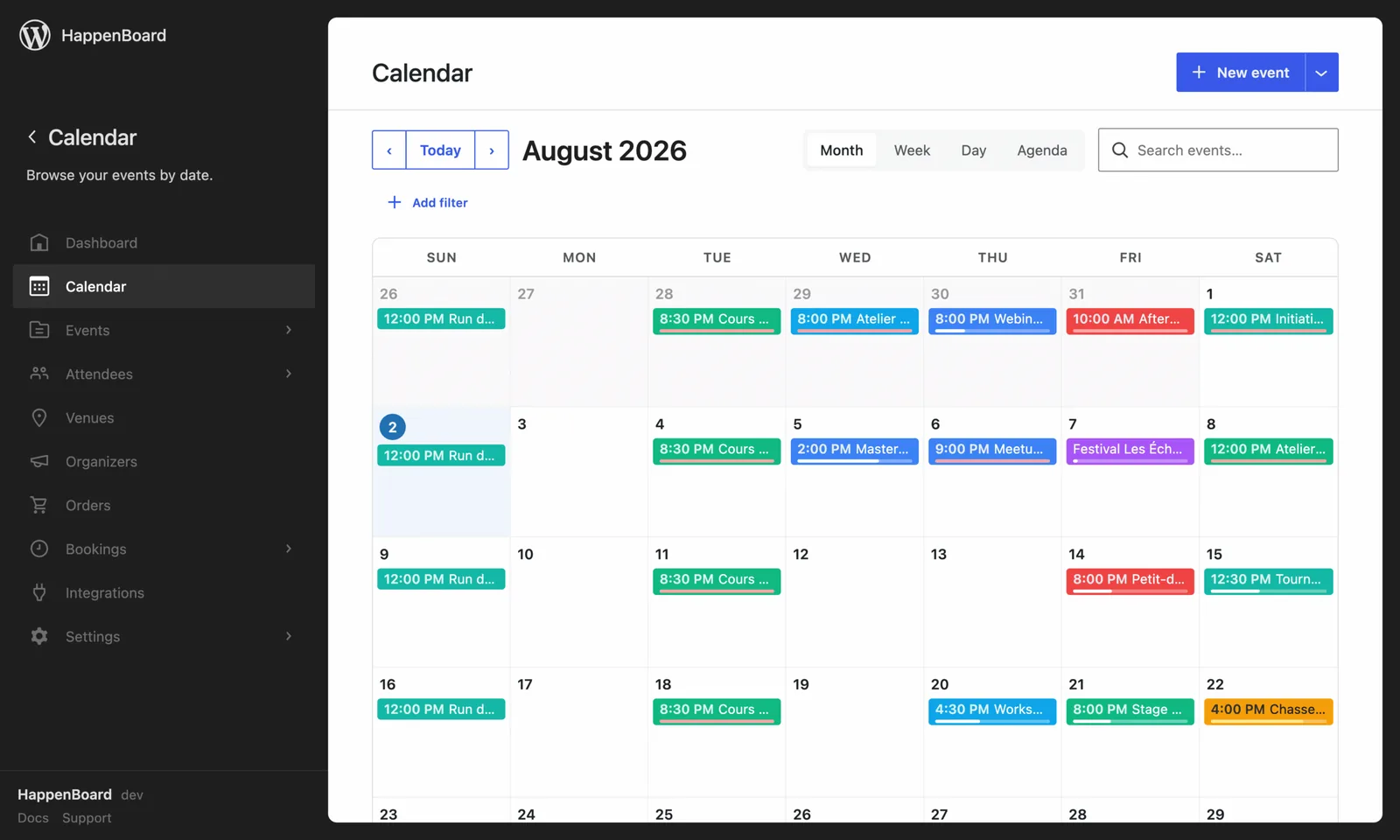
Month, week, day and agenda, plus lists and grids. Each view is a block that uses your theme’s fonts and spacing.


Set up your WordPress event calendar
Add your events once. They appear in the calendar, the lists and the event pages, with nothing to copy by hand.
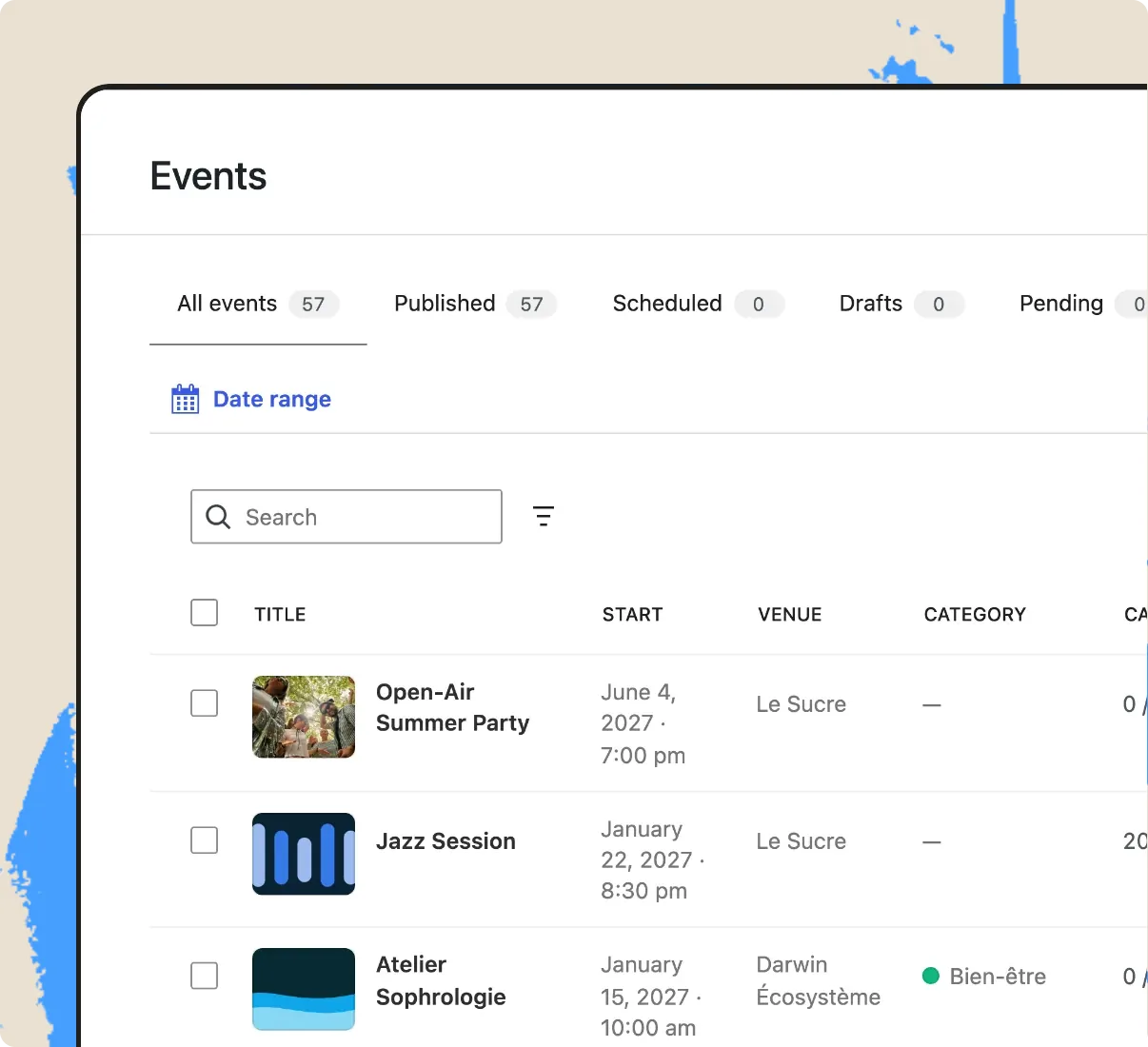
1. Create
Add your events, one-off or recurring.
2. Place
Insert the Calendar block, a list or a grid.
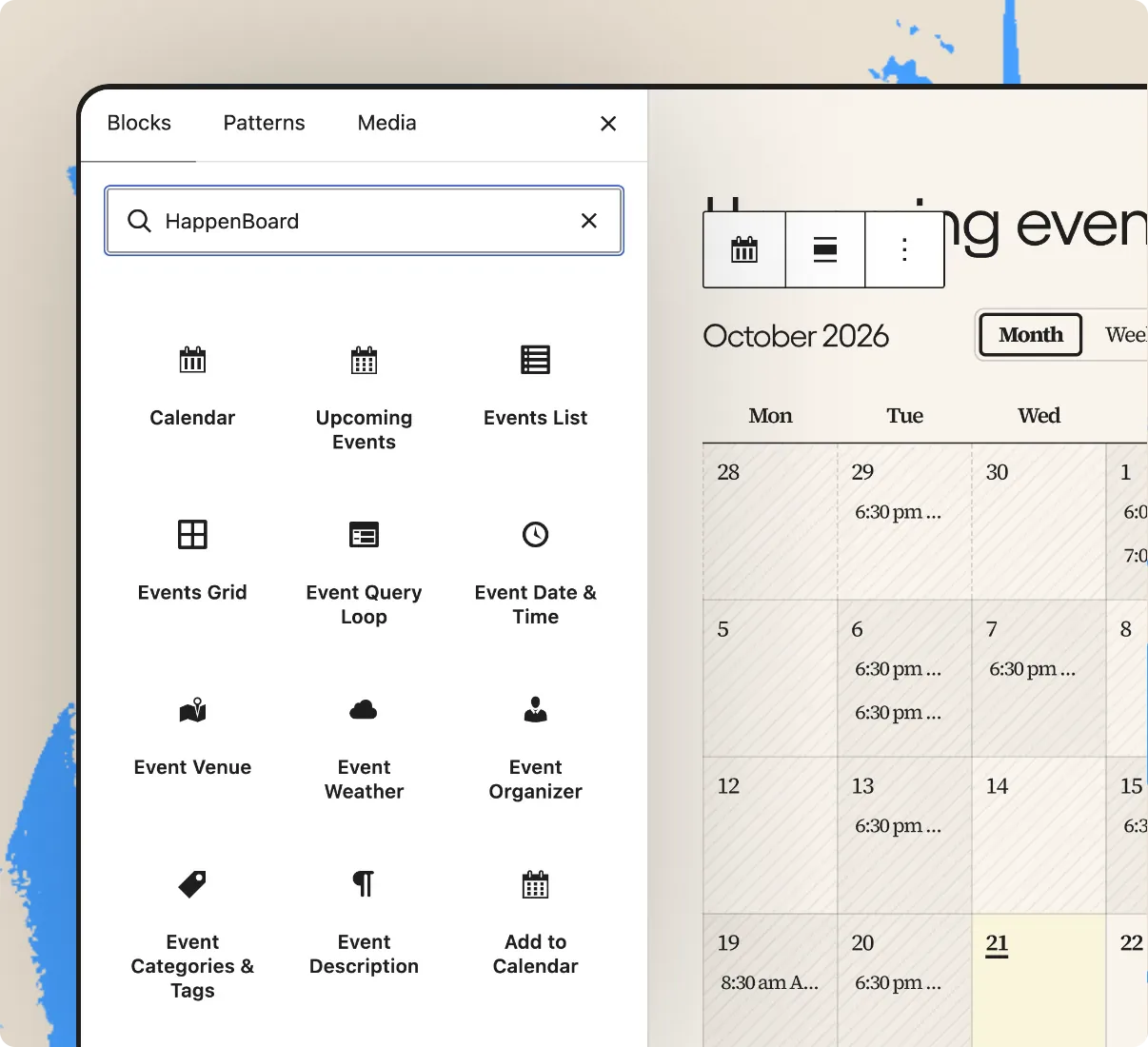
3. Publish
Visitors browse by month, week, day or agenda.
All calendar features

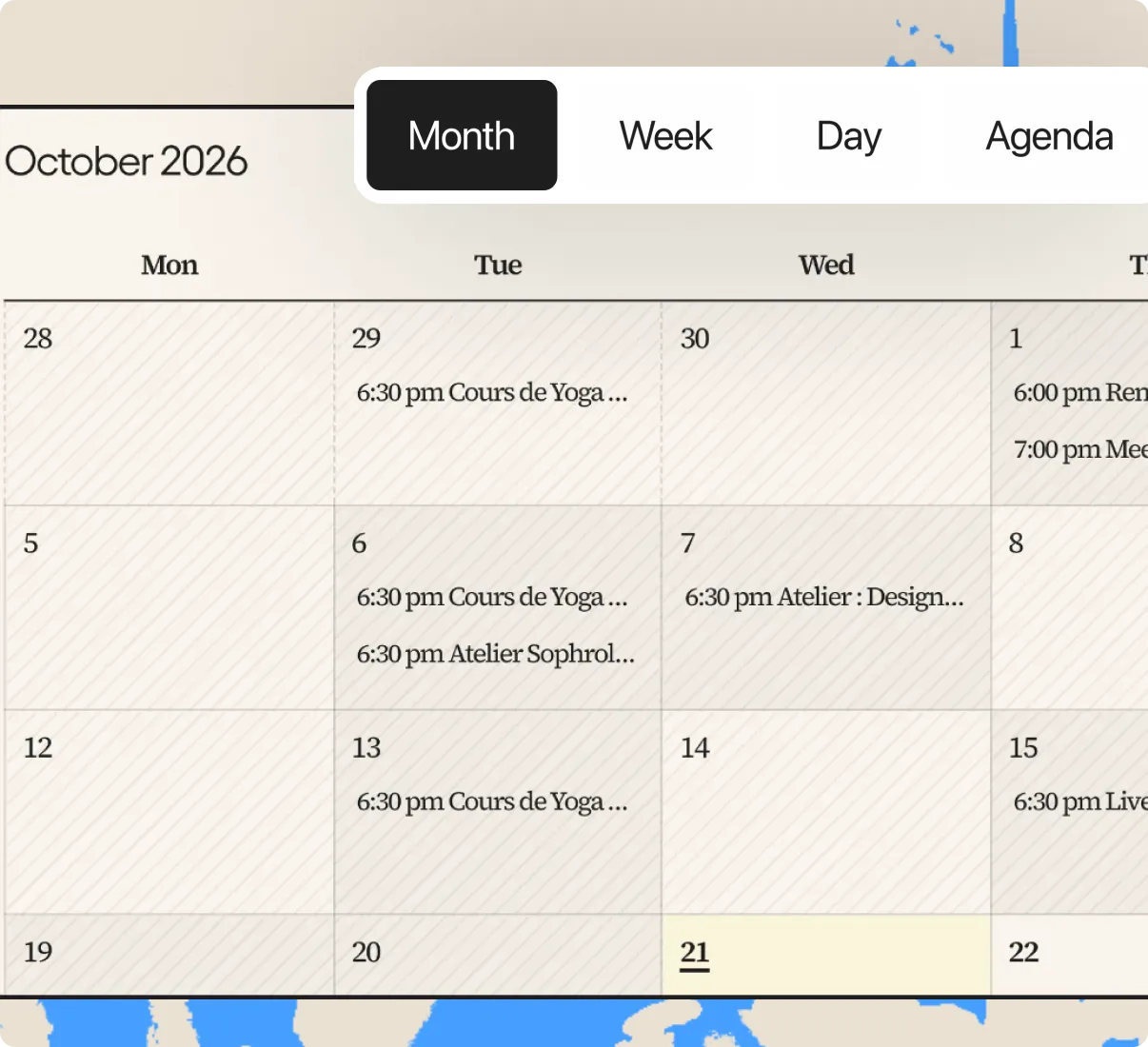
Month, week, day and agenda
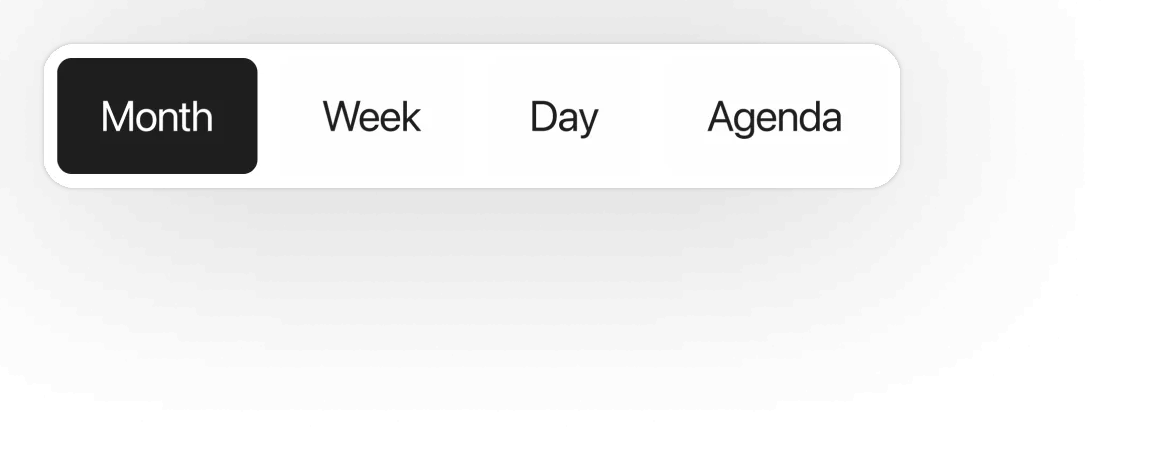
The Calendar block switches between four views. Visitors move to the next period without a page reload and keep the same dates when they change view.

Lists, grids and query loops
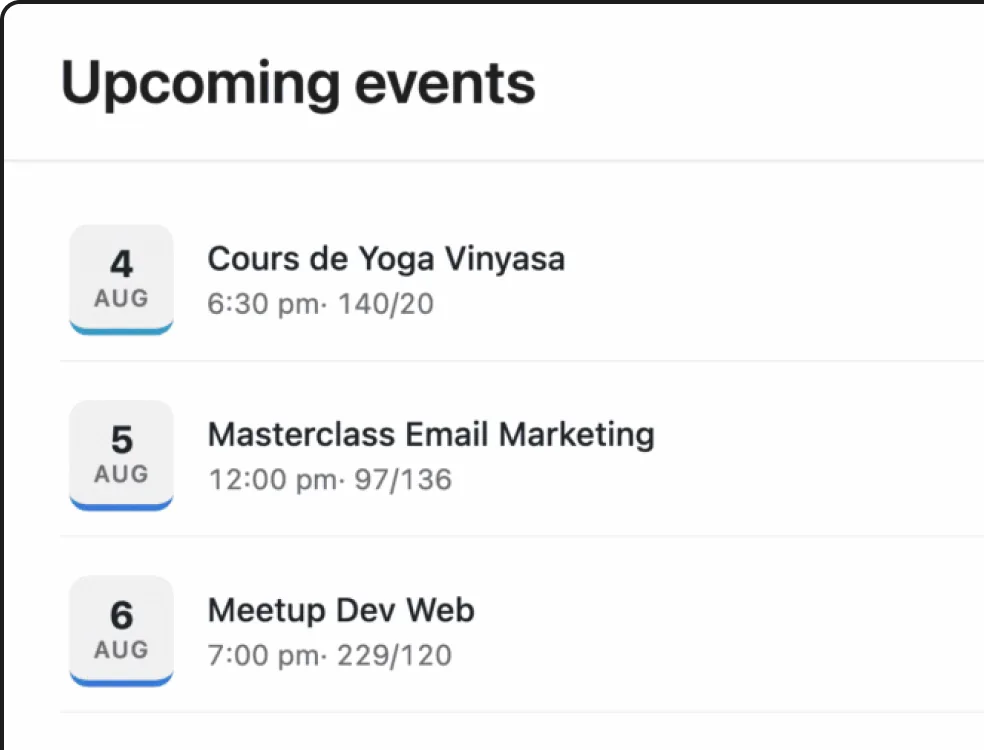
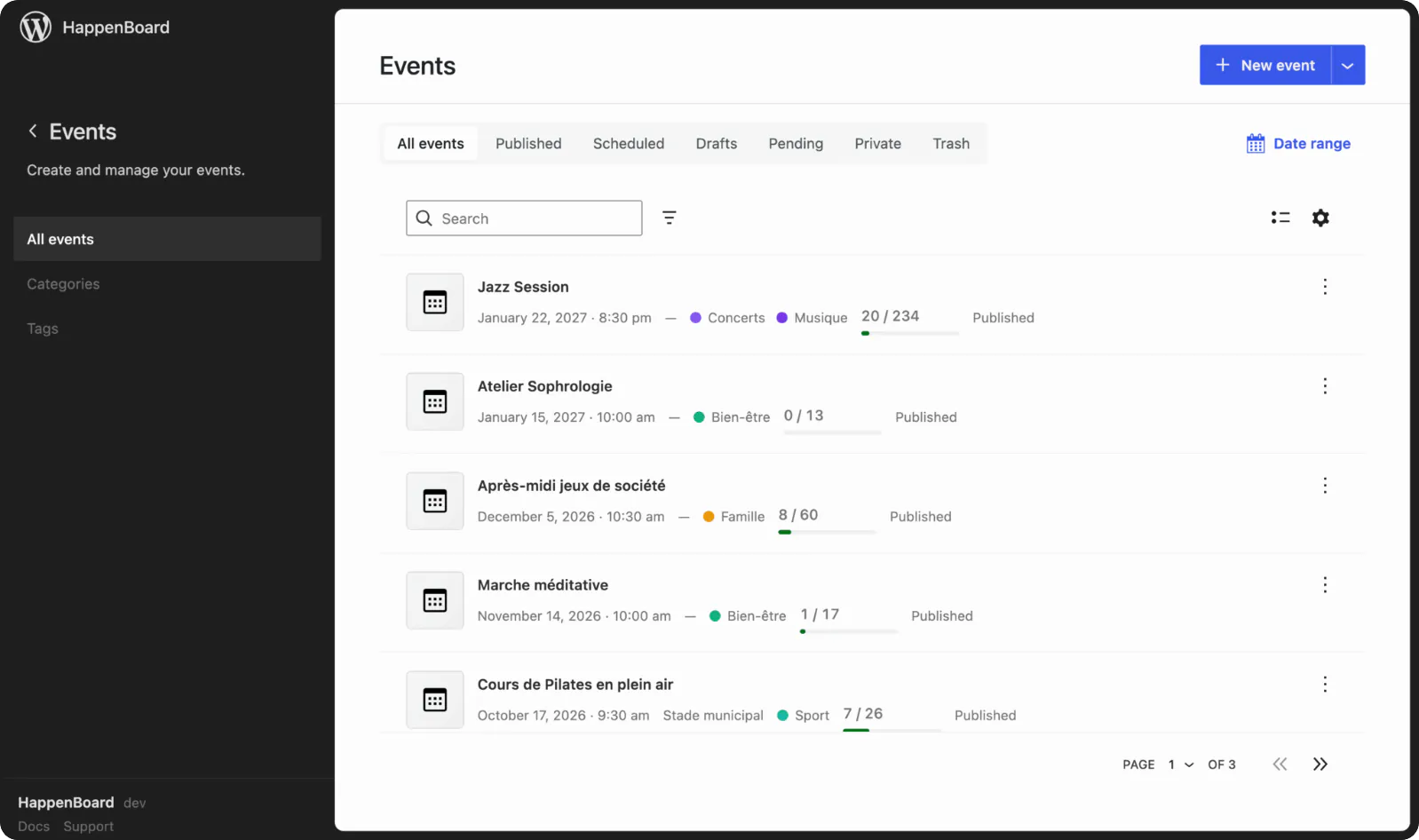
Upcoming Events, Events List and Events Grid cover the usual layouts. The Event Query Loop filters by category, tag, venue, organizer and dates, such as this week.

Recurring and multi-day events
A recurring event shows on each of its dates, and a multi-day event on every day it runs. Each date opens the event page at that date.

Templates, patterns and widgets
Block themes get 8 Site Editor templates and 11 block patterns. Classic themes get their event pages set up for them, and Elementor gets 8 widgets.

Add to Calendar and saved events
Visitors add an event to Google Calendar, Outlook or Yahoo, or download an .ics file. They can also save events and find them again in My Schedule.

Photo grid, tiles and timetable
HappenBoard Pro adds the Events Photo Grid, Events Tile View and Schedule / Timetable blocks. The timetable has one column per day and sets overlapping events side by side.
Integrates with all your essential apps














HappenBoard in action
A quick tour of HappenBoard in your WordPress admin.


Why run your event calendar on HappenBoard?
1
Real blocks, not shortcodes
Each view is a WordPress block you add, move and set up in the editor. It uses your theme’s fonts, spacing and text sizes, so the calendar looks like the rest of your site.
2
Events in the page, not loaded by a script
The calendar and lists are built on the server from an indexed table of dates, so your events are in the page’s HTML. Previous and Next are real links that search engines can follow.
3
Readable on a phone and with a screen reader
On small screens, each day of the month shows a count of its events that opens that day. The month is a real table, and each change of period is announced to screen readers.
Already on another events plugin?






Preview first, then import, even with the old plugin deactivated. Repeat rules from The Events Calendar, Events Manager 7 and Sugar Calendar come across, and you can export your events to CSV at any time.
Tailor HappenBoard to your business needs with flexible integration options.
You ask.
We answer.
We’re featured in





Is the event calendar free?
Yes. The Calendar block and its four views, the list and grid blocks, the templates, the patterns and the Add to Calendar block are in the free plugin. HappenBoard Pro adds the Photo Grid, Tile View, Schedule / Timetable and Filter Bar blocks.
Does the calendar work with my theme?
Yes. Block themes get 8 Site Editor templates, from the single event to the category and venue pages. On a classic theme, HappenBoard adds the date, RSVP form, venue and Add to Calendar to each event page, and a calendar and a list to the events archive. Elementor users get 8 widgets.
Can visitors filter the calendar by category?
Not in the Calendar block, which shows every published event. To show one category, use the Event Query Loop, which filters by category, tag, venue, organizer and dates. With HappenBoard Pro, the Events Filter Bar lets visitors search and filter the Event Query Loop, Events List and Events Grid themselves.
Can I change the calendar’s colours?
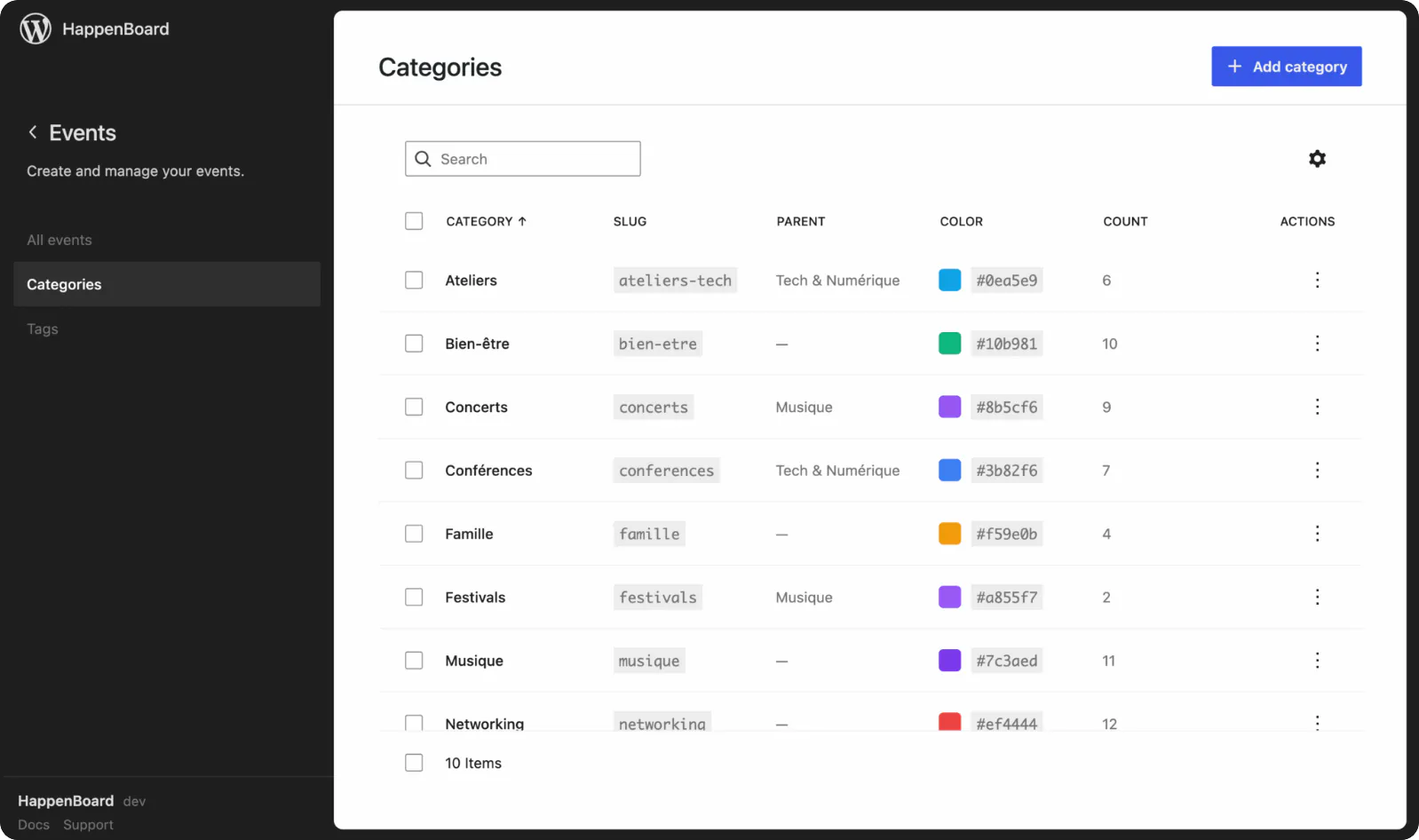
Yes. The Calendar block has four styles (Default, Minimal, Card and Bold) and takes text, background and link colours from the block settings. Category colours are used in the admin calendar only, not on your site.
Can I show past events?
Yes. The Event Query Loop has a Past date range, and visitors can go back to earlier months in the calendar, where past days are hatched and past events are marked.
Do recurring events show on every date?
Yes. Each date of a recurring event appears in the calendar and in lists, and opens the event at that date. Each series also gets an All dates page, and the Event Series: All Dates block lists its dates on any page.