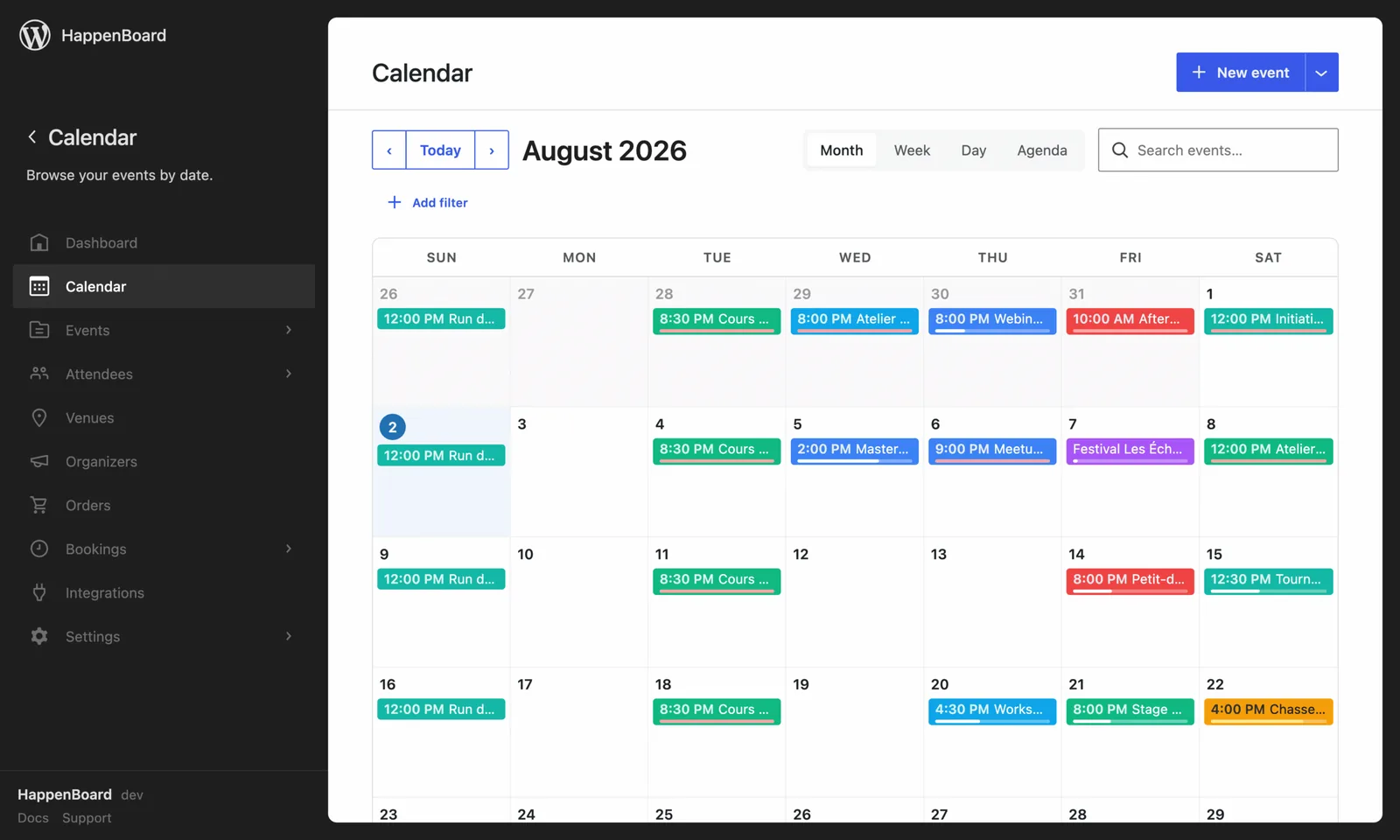
Turn key event moments into MailerPress email automations.
- RSVP, reminder, check-in and post-event triggers
- You build the emails, sequences and segments in MailerPress
- No second sending engine to configure
What you can do with it
- Start a MailerPress automation when someone signs up or buys a ticket, cancels, checks in, is due a reminder, or attended an event that ended.
- Send a thank-you or a survey the day after each date, recurring events included.
- Use the event details in your emails: attendee email and first name, event title, date, link, venue and seats.
- Add each new attendee as a MailerPress contact, in the list of your choice, with single or double opt-in.
- Reach guests who have no WordPress account, since they become contacts.
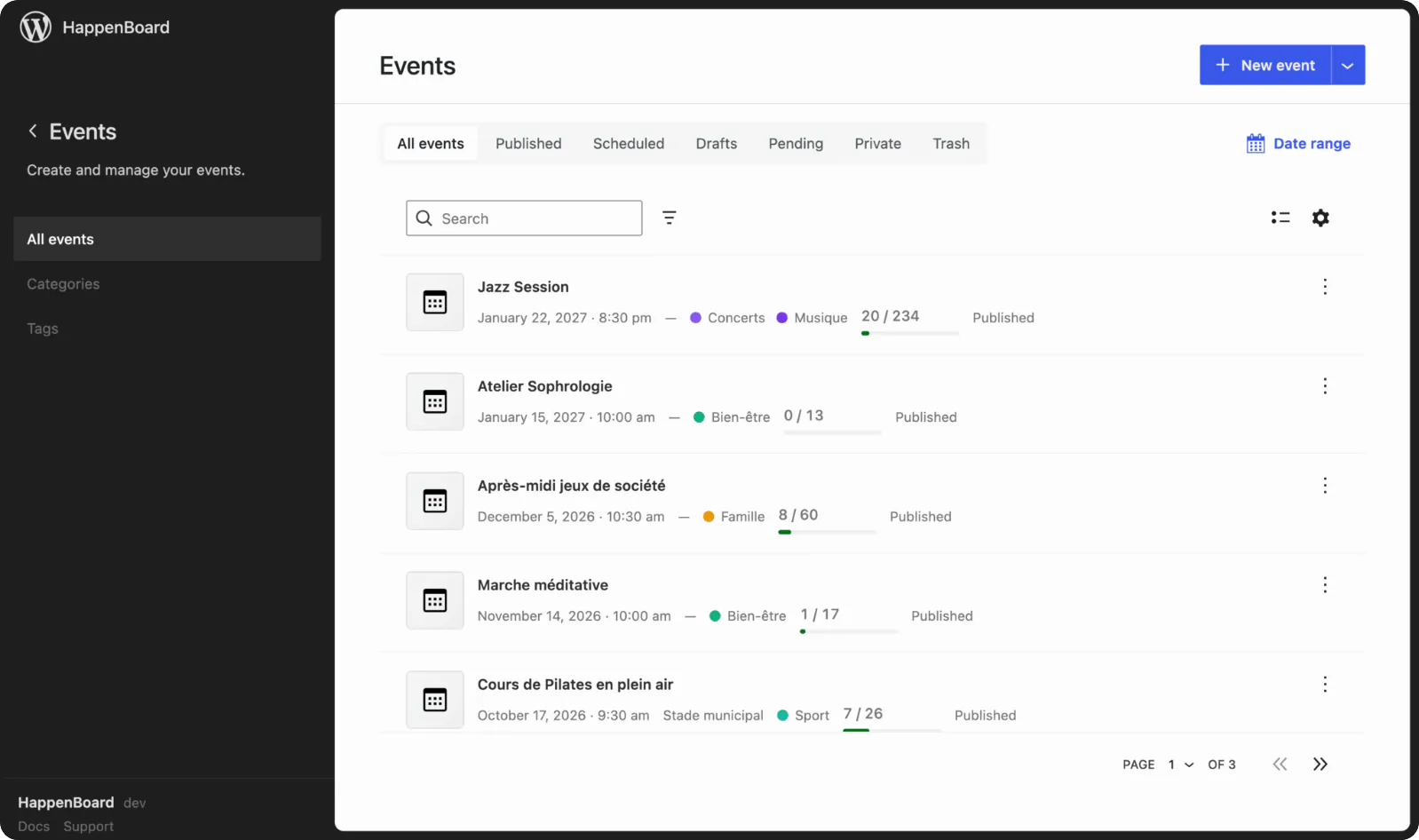
How to set it up
- Install and activate MailerPress on the same site.
- Go to HappenBoard → Integrations and click Configure on the MailerPress (Pro) card.
- Switch on Enable MailerPress automations.
- Switch on Sync RSVP attendees as MailerPress contacts, choose a list and a status, then click Save.
- In MailerPress → Automations, create an automation that starts with a trigger whose name begins with “Event:”.
The MailerPress automations guide lists the five triggers and the fields each one provides.
What you need
- MailerPress, installed and active on the same WordPress site.
- MailerPress Pro to build an automation from scratch. The free version starts from MailerPress’s own templates.
- HappenBoard Pro, active next to the free plugin.
- Your attendees’ consent before you add them to a marketing list.
Free and Pro
The free plugin sends its own attendee emails: confirmation, reminder, cancellation and date changes. They keep going out with MailerPress on.
The MailerPress triggers and the contact sync come with HappenBoard Pro. HappenBoard sends no email through MailerPress itself: the automations you build do.
Good to know
- Check your HappenBoard emails first, so attendees do not get the same message twice.
- Only new sign-ups are synced as contacts. People who registered earlier are not added.
- A cancellation made by your team on the Attendees screen does not start the cancellation trigger.
- The reminder trigger follows the reminder email: it needs reminders on in HappenBoard → Settings → Email.
- The post-event trigger runs once a day, for attendees marked as going.