Keep your events and your Google Calendar in sync, both ways.
- Two-way sync: edit on either side and the change flows across
- Recurring events are sent with their repeat rule
- Events added in Google arrive as drafts for you to review
What you can do with it
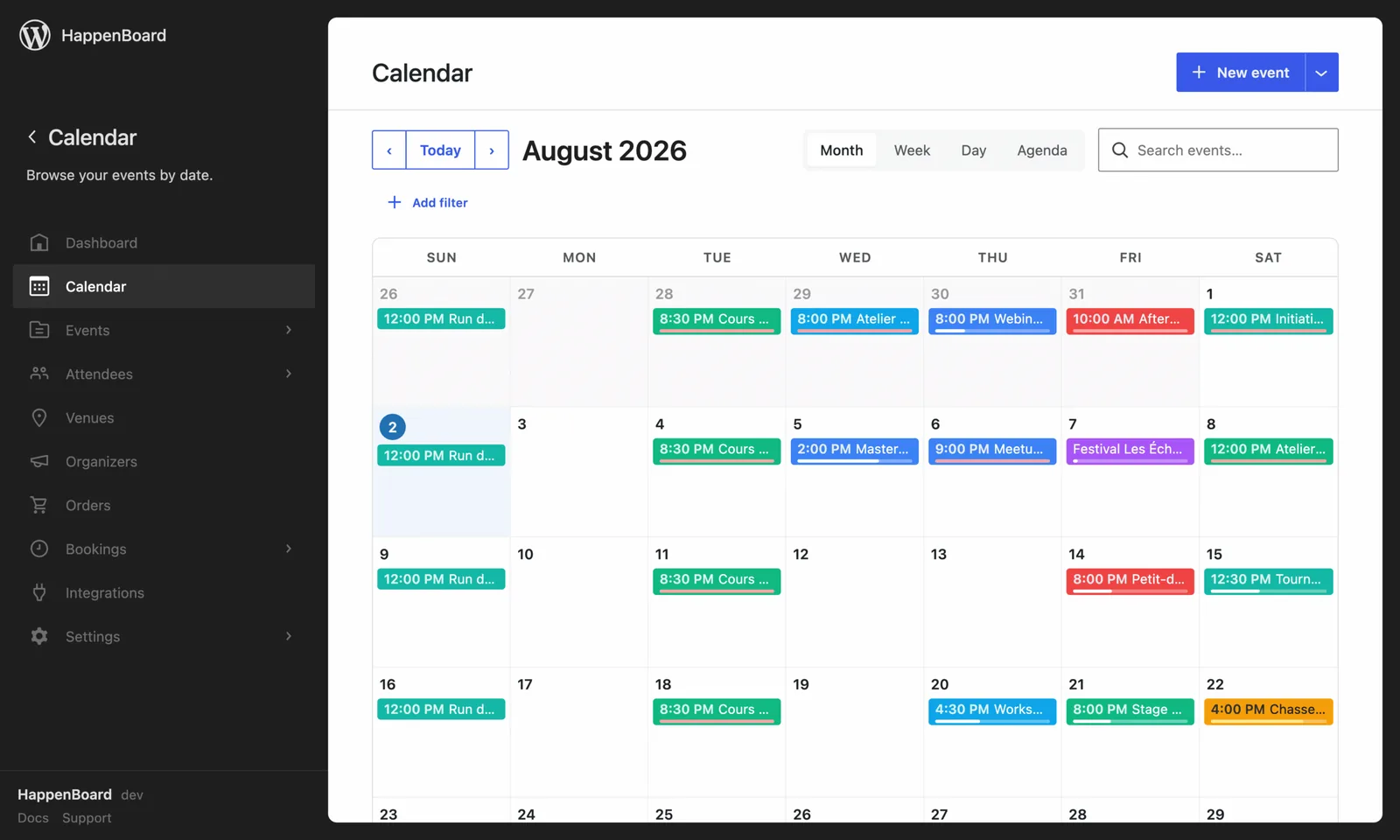
- Send every published event to a Google calendar: title, description with a link to your page, place, dates and repeat rule.
- Bring events added in Google back to your site as drafts, checked every 15 minutes.
- Update the matching event on your site when it is edited in Google, without publishing or unpublishing it.
- Mark an event as cancelled on the other side when it is trashed on your site or cancelled in Google.
- Let each host connect their own Google calendar, read only, so their busy times are not offered for booking.
- Run it next to the Outlook sync: each one has its own account and calendar.
How to set it up
- Go to HappenBoard → Integrations and click Configure on the Google Calendar (Pro) card.
- Create a Google Cloud project, enable the Google Calendar API and create a web client with the redirect URI the card shows.
- Paste the Client ID and Client secret, then click Save credentials.
- Click Authorize with Google and choose the account that owns the calendar.
- Pick a Target calendar and turn on Sync events to Google Calendar.
The Google Calendar guide shows each Google Cloud screen and the usual connection errors.
What you need
- HappenBoard Pro, active next to the free plugin.
- A Google account that can edit the calendar, and a free Google Cloud project.
- A site served over https.
- WordPress scheduled tasks that run, since the checks every 15 minutes rely on them.
Free and Pro
The free plugin publishes an iCal feed that Google Calendar can subscribe to, read only. Each event page also offers an .ics file and an Add to Calendar button.
The two-way sync, the import of Google events and the host busy times come with HappenBoard Pro.
Good to know
- Only published events without a password are sent. Events published before you turned the sync on are sent the next time you save them.
- A single date you move in a series is not sent to Google. A skipped date is removed the next time you save the event.
- Events marked private in Google are never imported. Invitations from other people come in only if you turn on Also import invitations.
- When an event changed on both sides between two checks, the most recent edit wins.
- Use a calendar kept for your site: everything added to it comes back to your site as drafts.