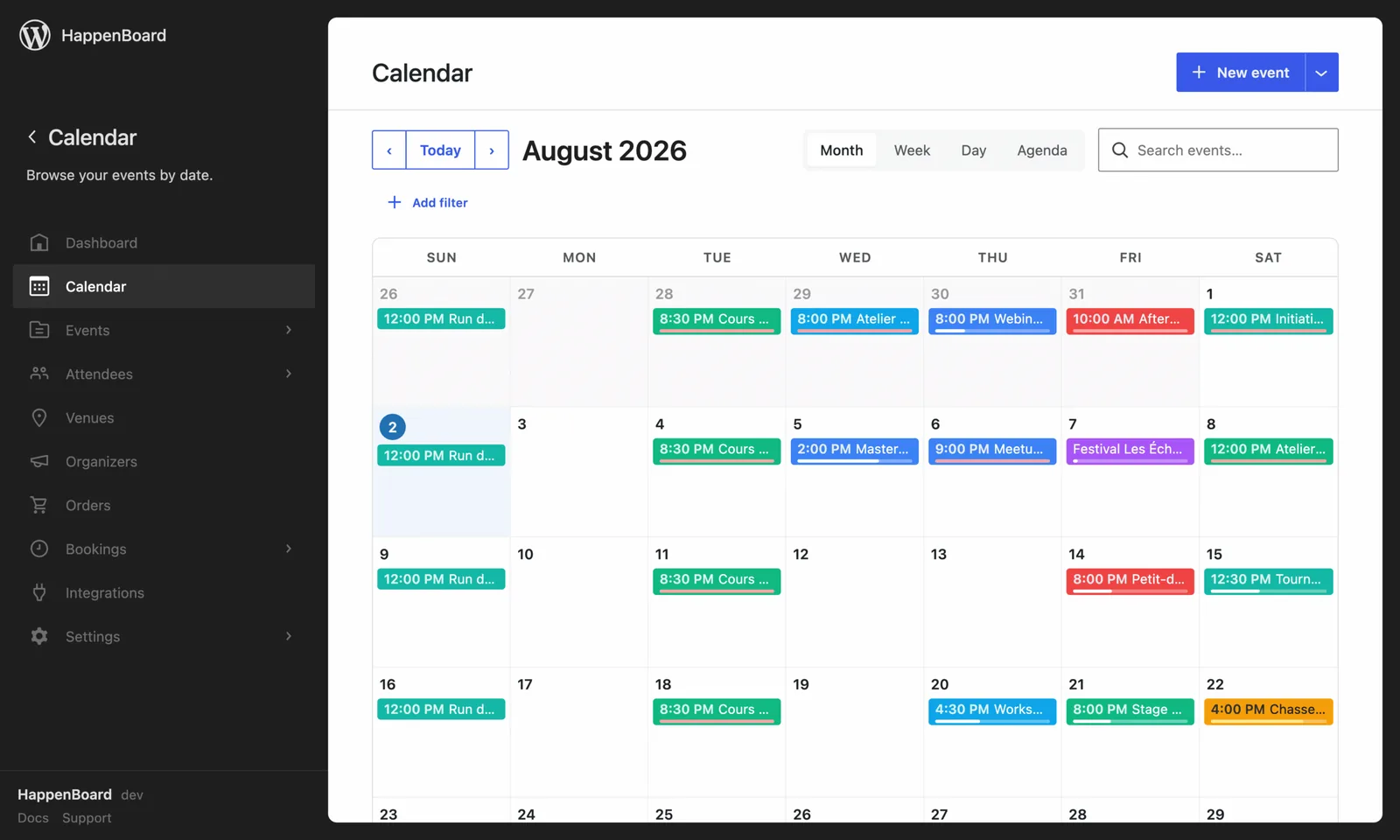
Use the calendar and event list blocks as Elementor widgets.
- Drop event blocks straight into the Elementor canvas
- Block settings become Elementor controls
- No shortcode, no separate widget set to learn
What you can do with it
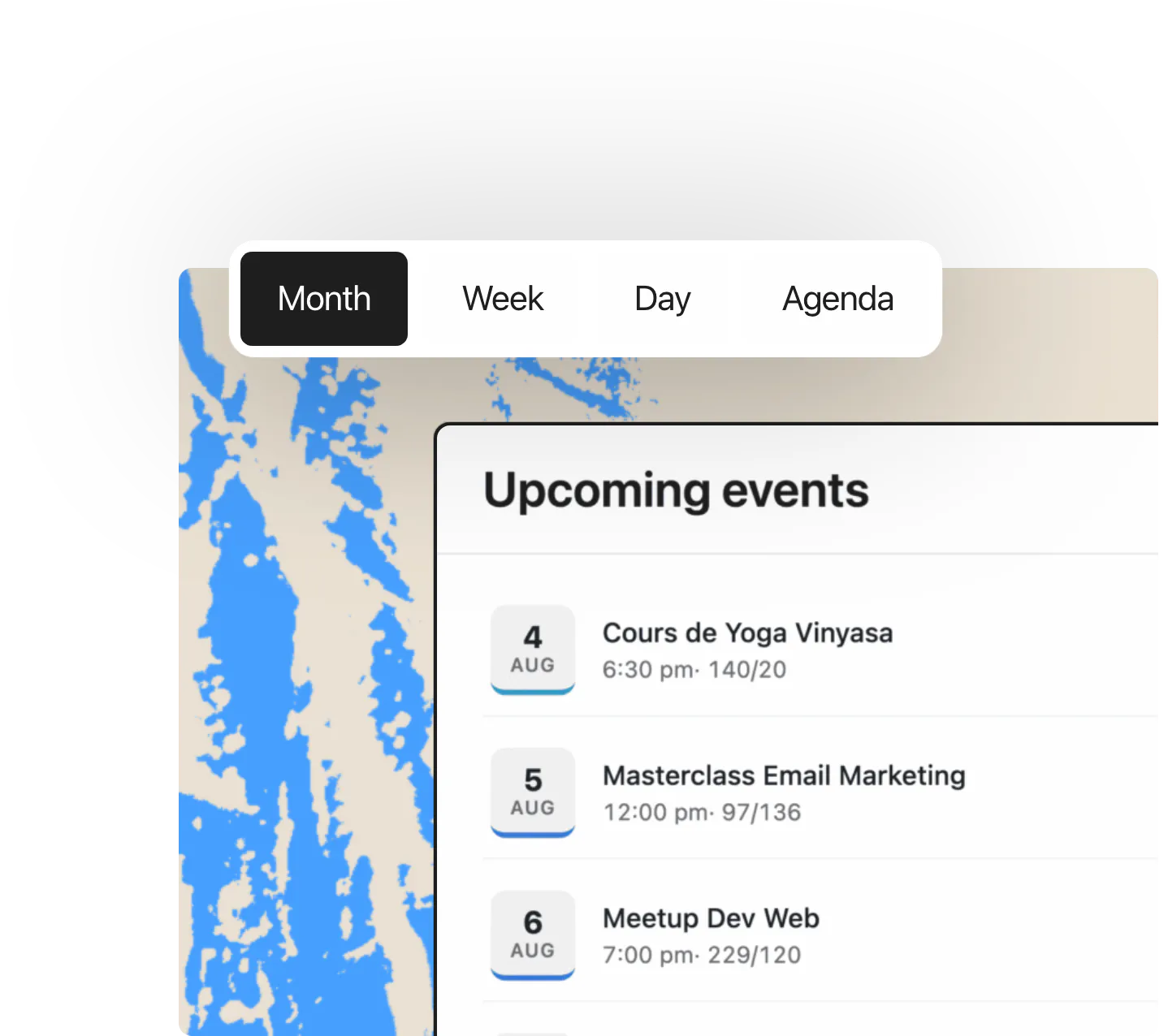
- Add 8 HappenBoard widgets from a HappenBoard category in the Elementor panel: Calendar, Upcoming Events, Events List, Events Grid, Event Query Loop, Save Event Button, My Schedule and Event Series: All Dates.
- Set each widget with the same options as its block, such as the calendar’s default view or the number of events in a list.
- Show the same output as the block editor: each widget renders the block on the server, with your theme’s fonts and colours.
- Mix HappenBoard widgets with your other Elementor sections, on any page or template you build with Elementor.
How to set it up
- Install and activate HappenBoard and Elementor.
- Open a page with Elementor.
- In the widget panel, find the HappenBoard category.
- Drag a widget, such as Calendar, onto the canvas.
- Change its settings in the HappenBoard section of the widget’s Content tab, then publish.
Each widget follows its block. The HappenBoard blocks overview explains what each one shows.
What you need
- Elementor, installed and active. The free version is enough.
- HappenBoard, the free plugin.
- Published events: calendars and lists show published events only.
Free and Pro
The Elementor widgets are in the free plugin. There is nothing to switch on: they appear as soon as both plugins are active.
The Pro display blocks, such as the photo grid, tiles and timetable, are not offered as Elementor widgets.
Good to know
- The Event Query Loop widget cannot filter by category or tag in Elementor. Use the block editor for those filters.
- Widgets render on the server, so Elementor’s editor shows the real calendar and lists.
- Design comes from the block and your theme. The widgets add no Elementor style controls.
- Event pages themselves keep HappenBoard’s templates, or your theme’s layout on a classic theme.
- With WPML or Polylang, each widget shows the events of the language being viewed.