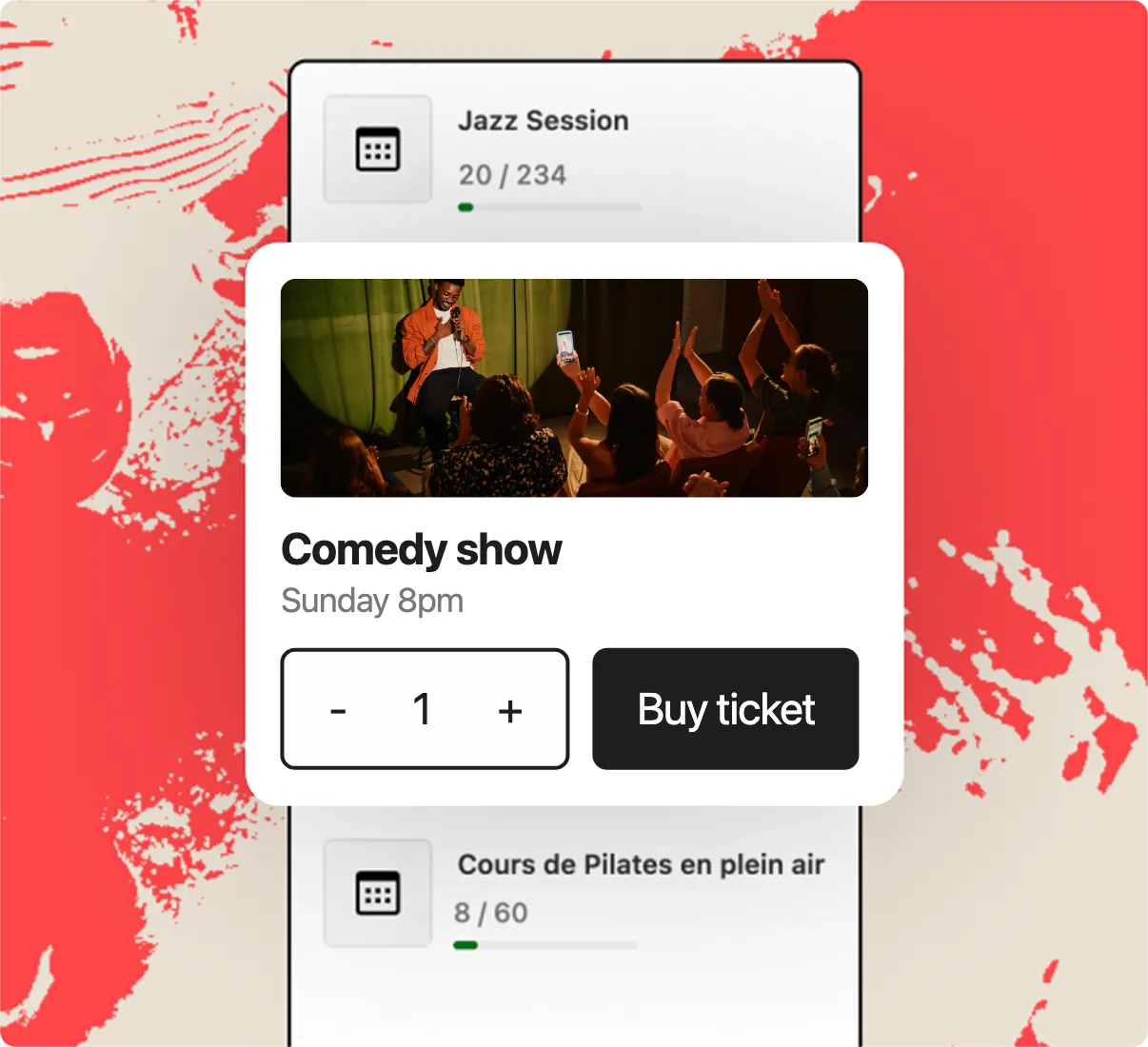
Sell tickets through Stripe Checkout and get paid straight into your own Stripe account.
- Ticket types with their own prices, capacities and sale windows
- Seats are held during checkout, so the last seat can’t sell twice
- Full or partial refunds from the Orders screen, seats freed up
What you can do with it
- Sell paid tickets on the event page. Buyers pay on Stripe’s secure page, so card details never reach your site.
- Give each ticket type its own name, price, number of seats and sale dates. A price of 0 makes a free ticket.
- Hold the buyer’s seats for about 30 minutes while they pay, then release them if the payment never comes.
- Send each buyer a confirmation email with a QR code per seat and a PDF ticket attached.
- Refund an order in full or in part from HappenBoard → Orders. Refunds made in the Stripe dashboard are recorded too.
- Take appointment payments online: the full price or a deposit, with the card held until you approve the request.
How to set it up
- Install and activate HappenBoard Pro.
- Go to HappenBoard → Settings → Stripe and paste your test keys from Stripe.
- Choose your Currency before you create tickets.
- Copy the Webhook endpoint address into Stripe and paste the signing secret Stripe gives you back.
- Click Test Stripe connection, then buy a ticket with Stripe’s test card.
- When it works, paste your live keys and the live webhook secret.
The Stripe setup guide lists the Stripe events to select and the common errors.
What you need
- A Stripe account, in a country where Stripe accepts your currency.
- HappenBoard Pro, active next to the free plugin.
- An administrator account on your WordPress site.
- A site served over https, as for any page that takes payments.
Free and Pro
The free plugin handles free registrations with its RSVP form. It stores the price of an appointment and shows “pay on site”, but takes no online payment.
Stripe payments, ticket types, PDF tickets, QR codes, the Orders screen and refunds come with HappenBoard Pro. Payments go to your own Stripe account: HappenBoard takes no commission, you pay Stripe’s usual fees.
Good to know
- Stripe Checkout is used for card payments. PayPal is not offered.
- The built-in Stripe checkout applies no coupons, discounts or tax. If you need them, sell through WooCommerce.
- 16 currencies are offered, USD by default. One cart is paid in one currency.
- Buyer details are asked once per order. There are no separate names per seat.
- If the last seat is gone when a payment arrives, the buyer is refunded through Stripe automatically.