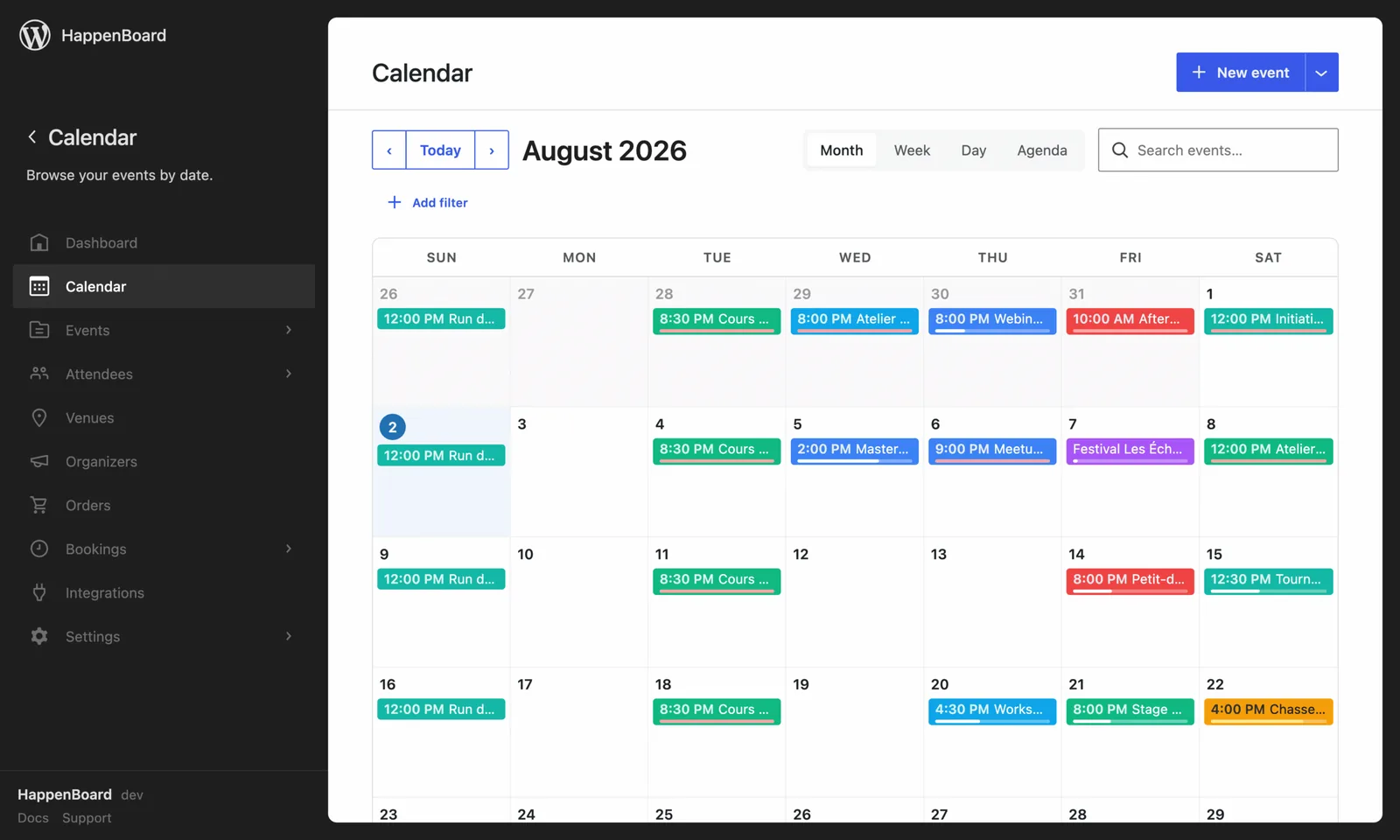
Sell tickets through the WooCommerce store you already run, with your existing gateways and taxes.
- Each ticket type is synced as a WooCommerce product
- Paid orders add attendees, refunded orders cancel them
- Cart validation checks the remaining seats before checkout
What you can do with it
- Turn each ticket type into a virtual WooCommerce product, named after the event and the ticket.
- Sell tickets with your shop’s cart, checkout and payment methods, next to your other products.
- Apply your WooCommerce coupons, discounts and tax to tickets.
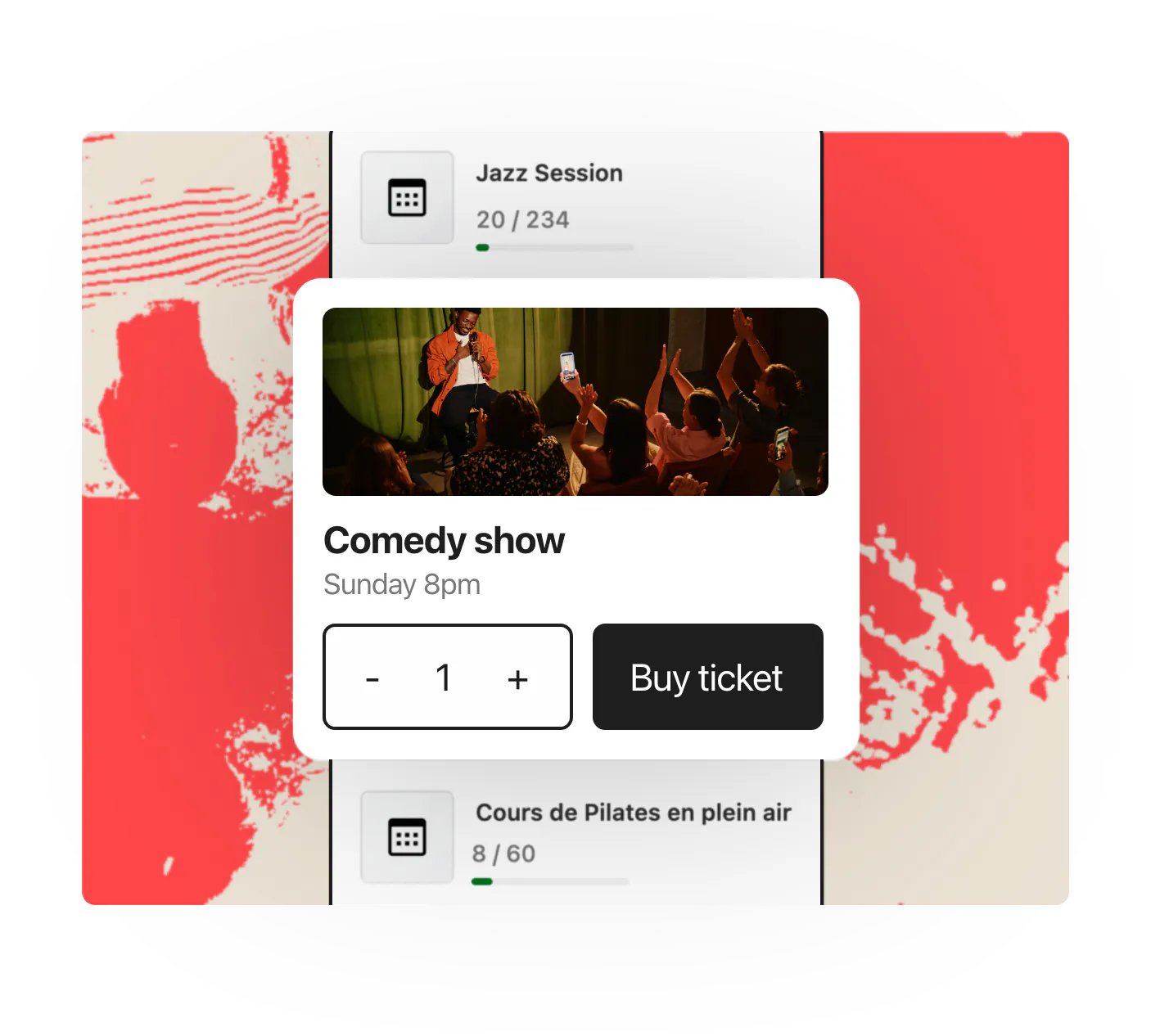
- Keep stock in step with the seats left. On a recurring event, buyers pick their date on the product page.
- Issue tickets once the order is paid: attendees get the confirmation email, the PDF ticket and their QR codes.
- Cancel the tickets and free the seats when an order is refunded, cancelled or failed.
How to set it up
- Install WooCommerce and switch on at least one payment method.
- Install and activate HappenBoard Pro.
- Create the ticket types of your events, in your shop’s currency.
- Go to HappenBoard → Settings → Stripe and find the WooCommerce ticketing card.
- Turn on Sell tickets through WooCommerce and click Save changes.
HappenBoard then creates a product for every ticket type. The WooCommerce ticketing guide explains stock, refunds and how to sell through the shop only.
What you need
- WooCommerce, installed and active, with a payment method.
- HappenBoard Pro, active next to the free plugin.
- Tickets priced in the same currency as your shop.
- An administrator account on your WordPress site.
Free and Pro
The free plugin takes free registrations only. It does not connect to WooCommerce.
WooCommerce ticketing comes with HappenBoard Pro, along with ticket types, PDF tickets and QR code check-in. It works with WooCommerce’s Cart and Checkout blocks and its high-performance order storage.
Good to know
- Change a ticket’s name, price and description in HappenBoard, not on the product: each save of the ticket rewrites them.
- Refund WooCommerce orders in WooCommerce. The refund form of the Orders screen handles Stripe payments only.
- A partial refund in WooCommerce is recorded but frees no seat. Cancel the attendee to free it.
- WooCommerce buyers are not asked your attendee custom fields. Only the Ticket Picker asks them.
- Stripe checkout stays available on the event page. Remove the Ticket Picker if you want buyers to go through the shop only.